A better overview of Instances and Schemas
The Instances and Schemas lists have a new layout that shows more at a glance.
Need to find every Instance with values outside tolerance, every Instance with a comment, or the Instances you have shared with a supplier?
Now you have filters to solve these problems!
The Schemas list also shows how many Instances each Schema has, and their status.
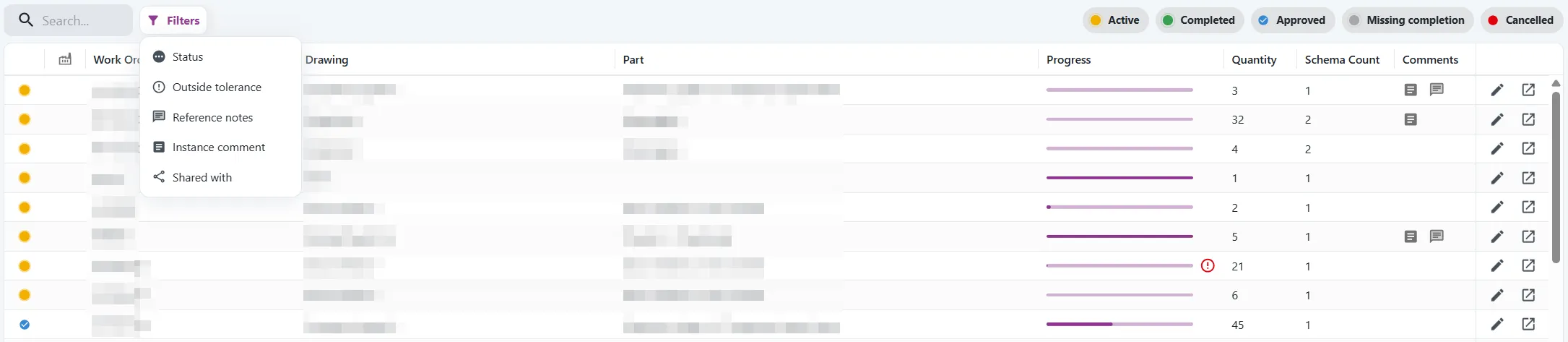
Filter the Instances list
Click Filters, or press F, to filter on:
- Status: Active, Completed, Approved, Missing completion or Cancelled.
- Outside tolerance: Instances with one or more values outside tolerance.
- Reference notes: Instances with a note on one or more references.
- Instance comment: Instances with a comment.
- Shared with: Instances shared with a supplier, or not shared.
Combine filters to find what needs attention, for example Active Instances with values outside tolerance. Each choice from the filter shows how many Instances match.
Need only one status? Use the quick filters in the top right corner: click Active, Completed, Approved, Missing completion or Cancelled. They are shown as long as no other filter is in use.

The list remembers your filter, so it is still there the next time you open it.
The filter you choose is added to the page address.
Copy the address to share the
filtered list with a colleague, or save it as a bookmark to get back to it with one click.
This address shows Completed Instances with values outside tolerance:
https://ignos.io/inspect/instances?statuses=Completed&outsideTolerance=Yes
See the Instances of each Schema

See at a glance which Schemas are in use. The Instances column shows how many Instances each Schema has in each status. Click it to see them.
Filter on Status, Customer or Schema creator, or click Draft or Released in the top right corner. Schemas made with Schema Creator open in Schema Creator with one click from the list.
Instances on the Schema page
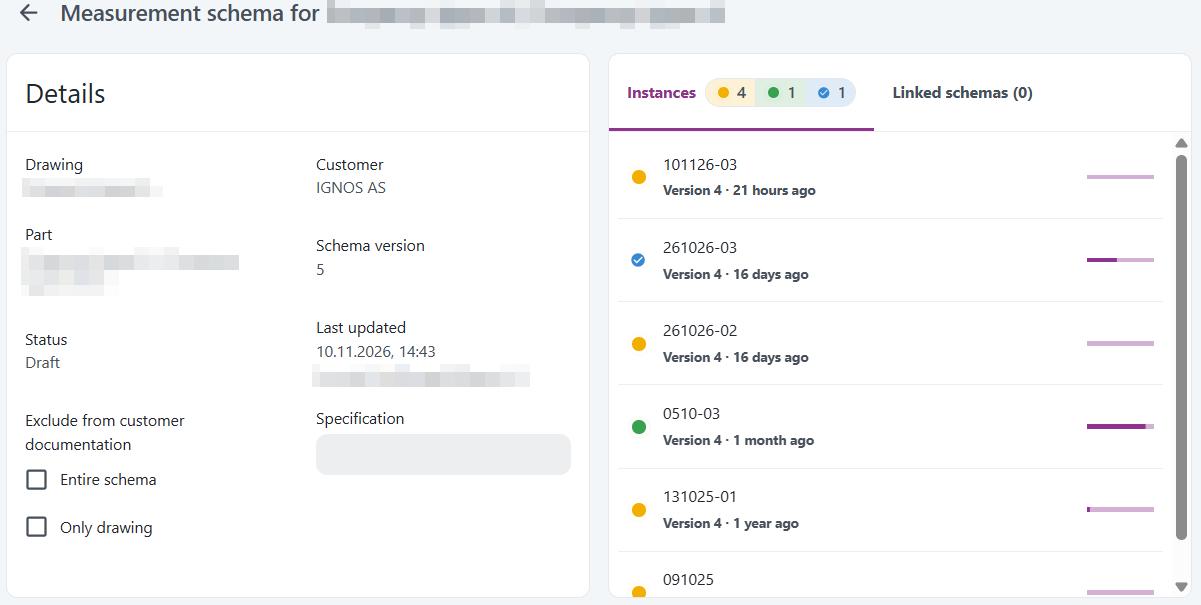
The Schema page has a new Instances tab, so you see which Instances use the Schema, with their status and progress. It sits next to Linked schemas.
The instance comment saves itself

Like Notes in Keep, the comment on an Instance now saves itself when you stop typing. No save button to forget!
Same layout on every list
The Needs, Discarded and Feedback lists have the same layout as the Instances and Schemas lists. The search field and the buttons are in the same place, and the list fills the page. What you can do in these lists is the same as before.
Get started
Go to Inspect > Measure > Instances or Schemas. The filters are available to users with the Measurement Forms Instance Admin, Measurement Forms Admin, QC Admin or Admin role.
Read more in the documentation.