Connect downtime to orders and parts
Downtime reporting in Pulse now connects each reported downtime reason to an order and part when that information is available.
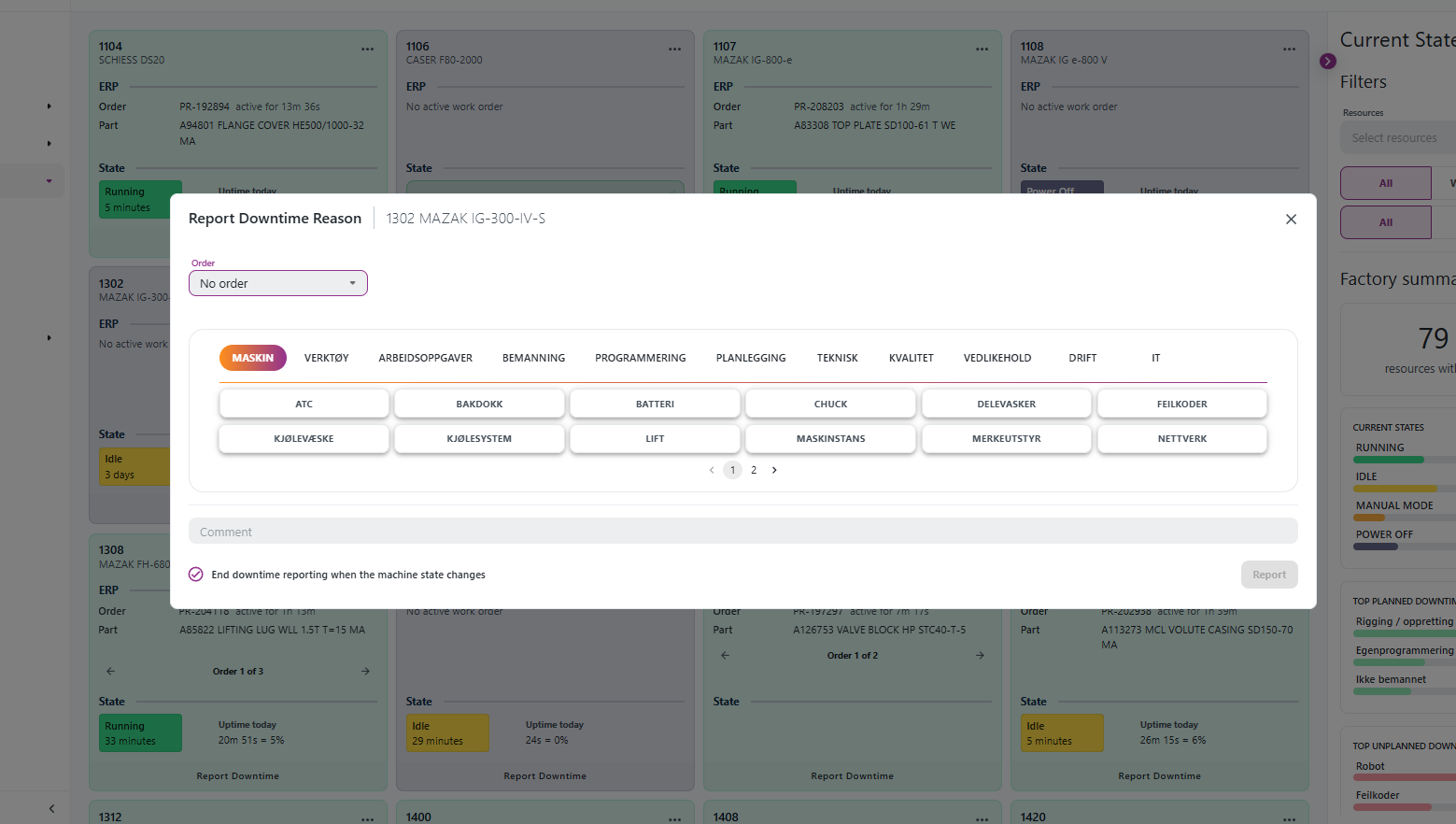
When you report or edit downtime, you can select an Order or choose No order. The selected order's part number and part name are saved with the downtime reason, so the report can show which order and part the stop belongs to.
Downtime Report updates
The Downtime Report now uses a data grid with clearer columns: Start, Category, Reason, Duration, Order, Part, Resource, and Type.
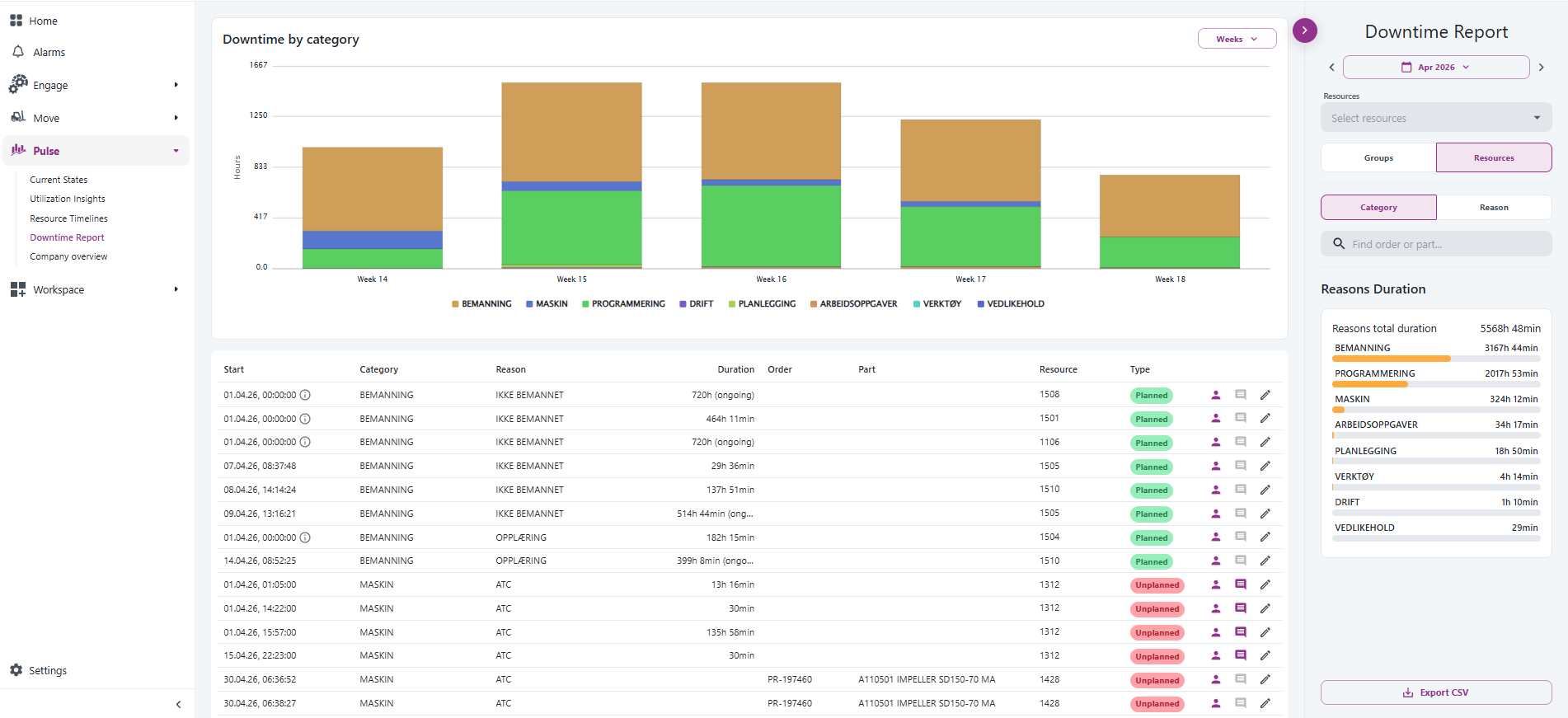
The report also includes these improvements:
- The old Total duration label is now Duration.
- Category is shown next to Reason, so parent downtime topics are easier to scan.
- Order and Part are visible directly in the report.
- Column filtering is available from the grid, making it easier to narrow down larger reports.
- Resource cells show more resource information on hover when available.
- The person icon shows who created or last updated the downtime reason.
- The comment icon shows the comment on hover and is highlighted when a comment has been added.
- The pencil icon still opens editing for the selected downtime reason.

Search and export
The right-side filters now include a search field with the placeholder Find order or part.... Use it to search downtime reasons by order, part number, or part name.
The Export CSV button respects the selected period, machines/groups, and order/part search. The downtime export includes category, order, part number, and part name information, making it easier to work with the report outside Pulse.