Better order search in Engage and Move
Order search in Engage and Move has been improved. Typing an order number now reliably brings that order to the top of the list, results are sorted so the most relevant orders come first, and each result shows the order status and delivery date.
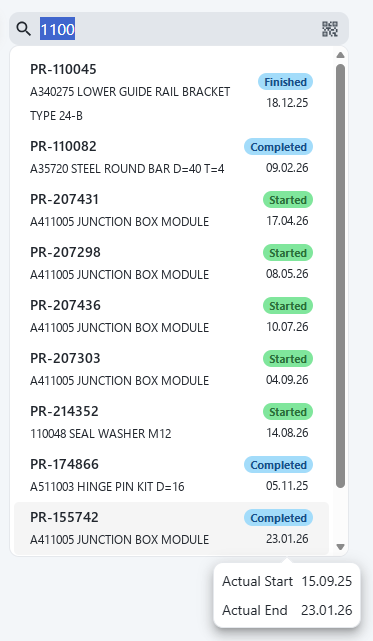
Order numbers are no longer crowded out
Previously, if many parts happened to match the text you typed, they could fill up the result list and push the order you were actually looking for out of view.
Order number matches and part matches are now handled separately, so an order whose number matches what you typed shows up even when many parts match the same text.
Results are sorted by relevance
Order number matches come first, followed by matches on part number and part name. Within each of those groups, orders are sorted by status:
- Started — orders currently in production
- Ready — orders ready to start
- Orders that are done — Finished and Completed
and finally by planned start date, earliest first. Note that the date shown on each row is the delivery date, not the planned start used for sorting.
This is why a finished order can sit above one that is in production: the finished order matched on its number, while the one below it matched on its part.
Status and dates on every result
Each row in the result list now shows the order status and its delivery date on the right. For orders that have been started or finished, hover the date to see the actual start and end dates.
This means you can pick the right order straight from the search results, without opening each one to check whether it is the one you want.
Also in Move
Parcel search in Move has been improved in the same way. This applies to the parcel search in Tracking, Booking and Update location.

- Matching is split the same way as in Engage, and work order results are ordered by status and planned start.
- Parcel results keep their existing place in the list, so a parcel you are hunting for still shows up even when there are many work order matches.
- Results now show the work order status and delivery date, where the parcel belongs to a work order.
- Parcels without a work order — such as garbage and material labels — show the parcel kind instead, with no status or date.