Instances can now be edited
Typed a wrong serial number, or does the work order need more parts?
You can now edit an Instance after it has been created!🙌 Change the customer and the customer PO, and add, rename or remove serial numbers.
How to
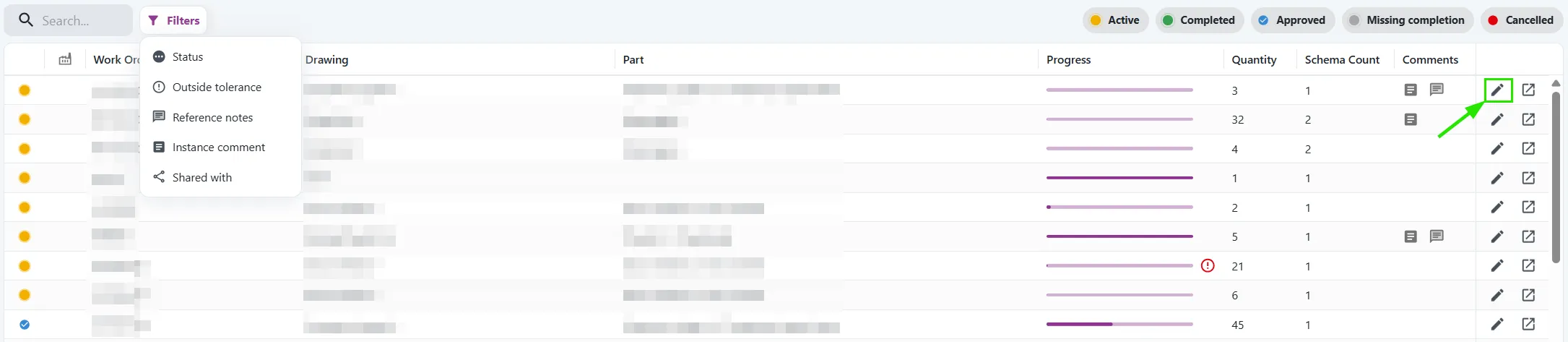
Go to Inspect > Measure > Instances and click the pencil icon on an Active Instance.
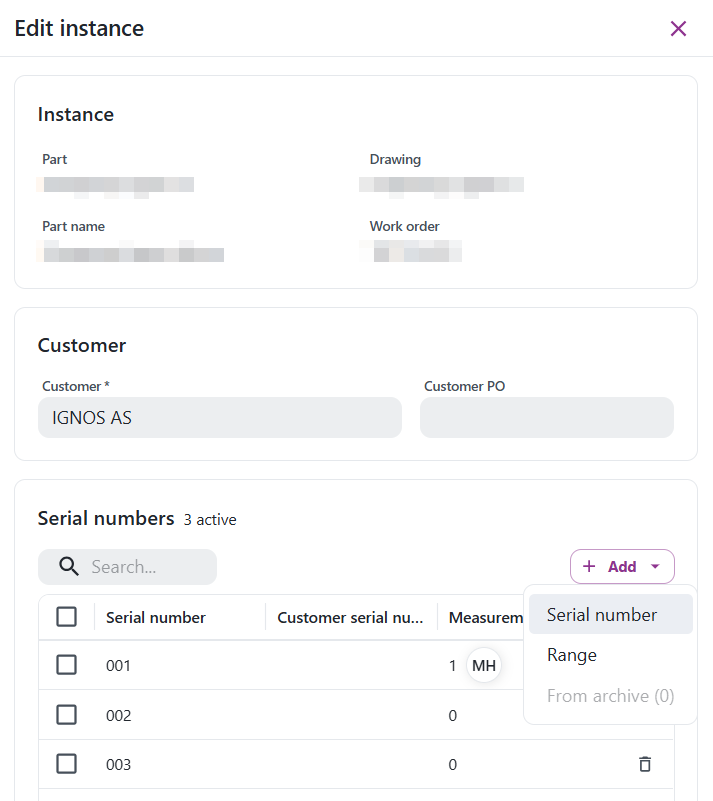
- Add: choose Serial number, Range or From archive.
- Rename: click a serial number or a customer serial number in the table and type the new value.
- Renumber: select serial numbers, click Renumber and type a new start number.
- Remove: select serial numbers and click Remove. You can undo it with Restore until you save.
The Measurements column shows how many measurements each serial number has, and who documented them.
Your measurements are kept
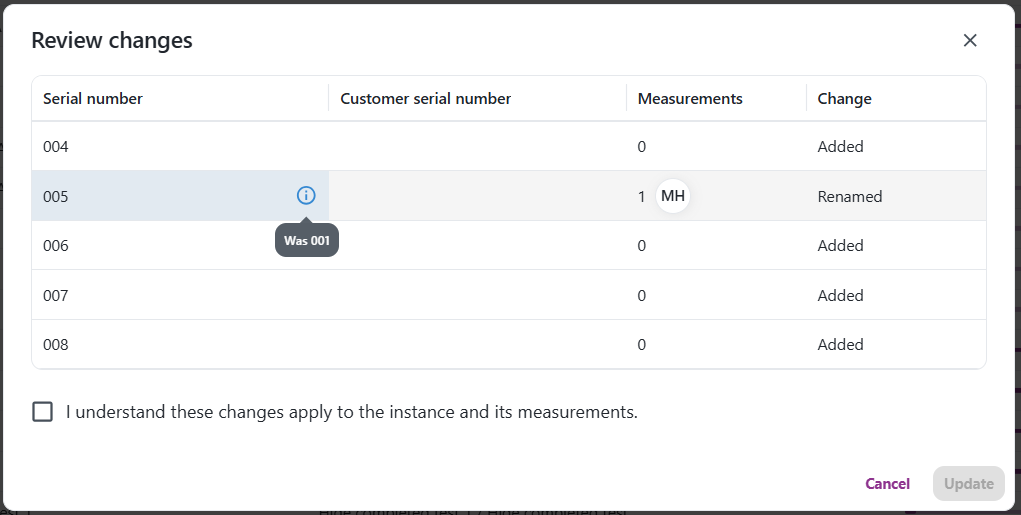
Your measurements are not lost. Rename a serial number, and its measurements go with it. Remove one, and its measurements are archived. Add it back with From archive to get them back.
Review before you save
Nothing is saved until you have checked it. Click Review to see what happens to each serial number, confirm, and click Update.
Who can use it
Users with the Measurement Forms Instance Admin, Measurement Forms Admin, QC Admin or Admin role. Editing is available when your company creates Instances in IGNOS. It is not available when your Instances come from your ERP.
Read more in the documentation.