Working with attachments in Engage
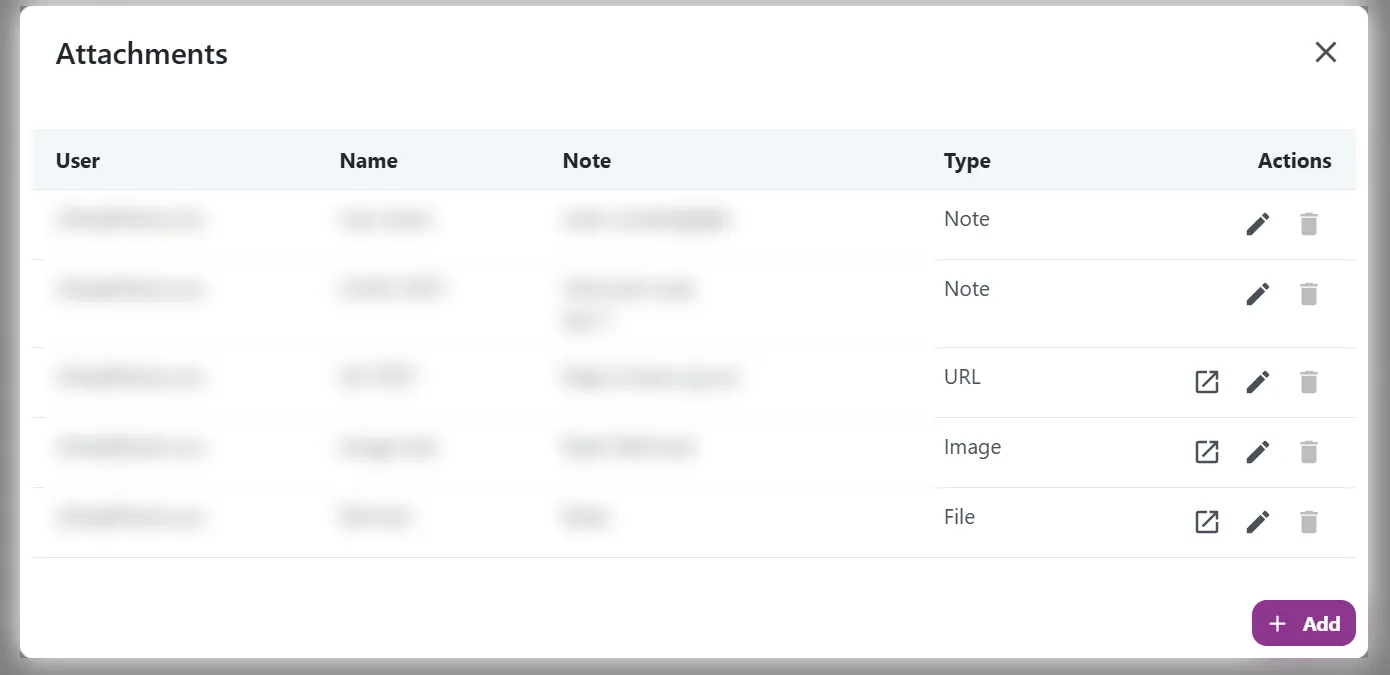
Attachments on a production order could previously only be listed. You can now open them, and add, edit and delete them directly from Engage.
Opening attachments
Files and images can now be opened from the attachments dialog. Previously it was possible to see that a file was attached, but not to open it, which meant going into Dynamics 365 to read a drawing or a procedure.
Links open in a new tab, as before.
Adding attachments
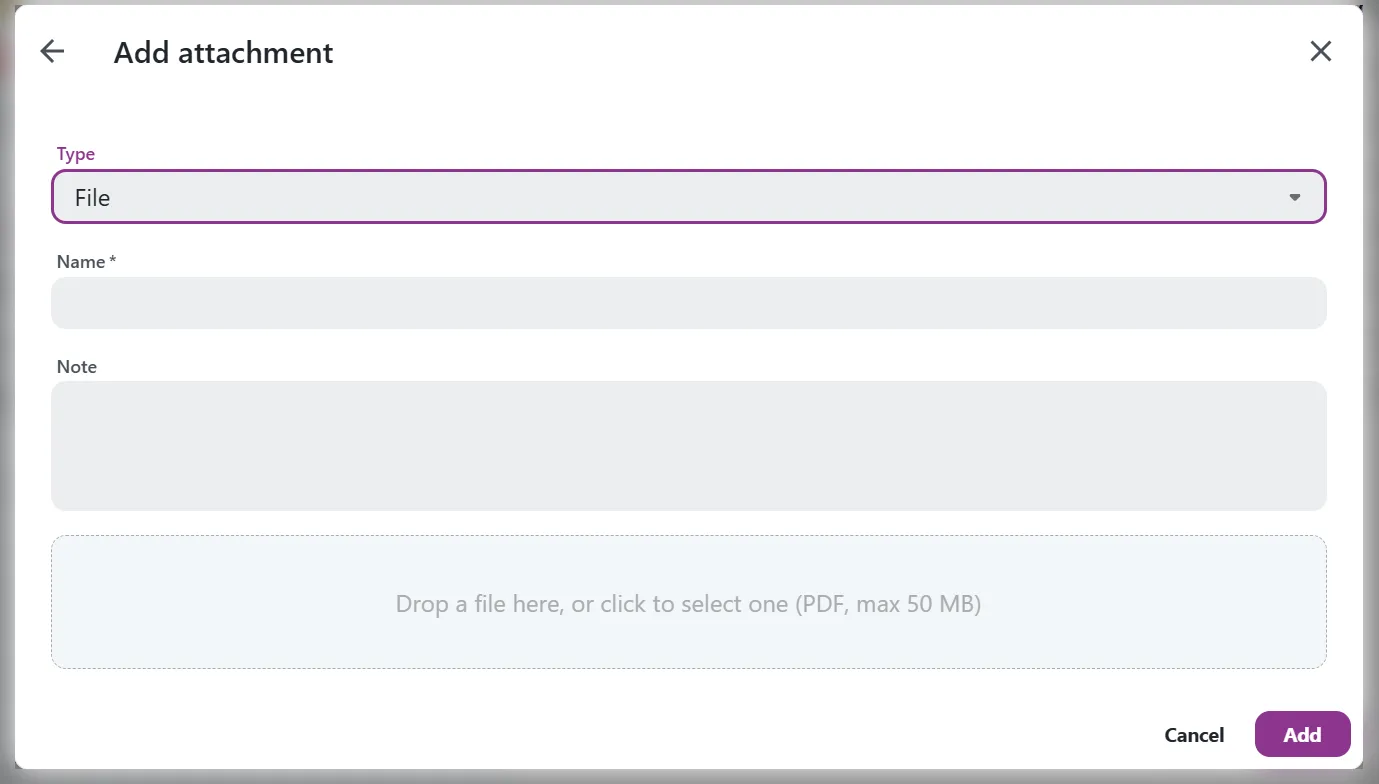
Use the Add button in the attachments dialog. Four types are available:
| Type | What it is |
|---|---|
| Note | A piece of text |
| URL | A link |
| Image | PNG, JPG, GIF or WEBP |
| File |

For an image or a file, drop the file into the dialog or select it. Images and files can be up to 50 MB.
The attachments button is now always shown on an order, so an order with no attachments yet can still have one added.
Editing attachments
Notes and links can be edited in place. Select the pencil icon on the row, change the text or the address, and save.

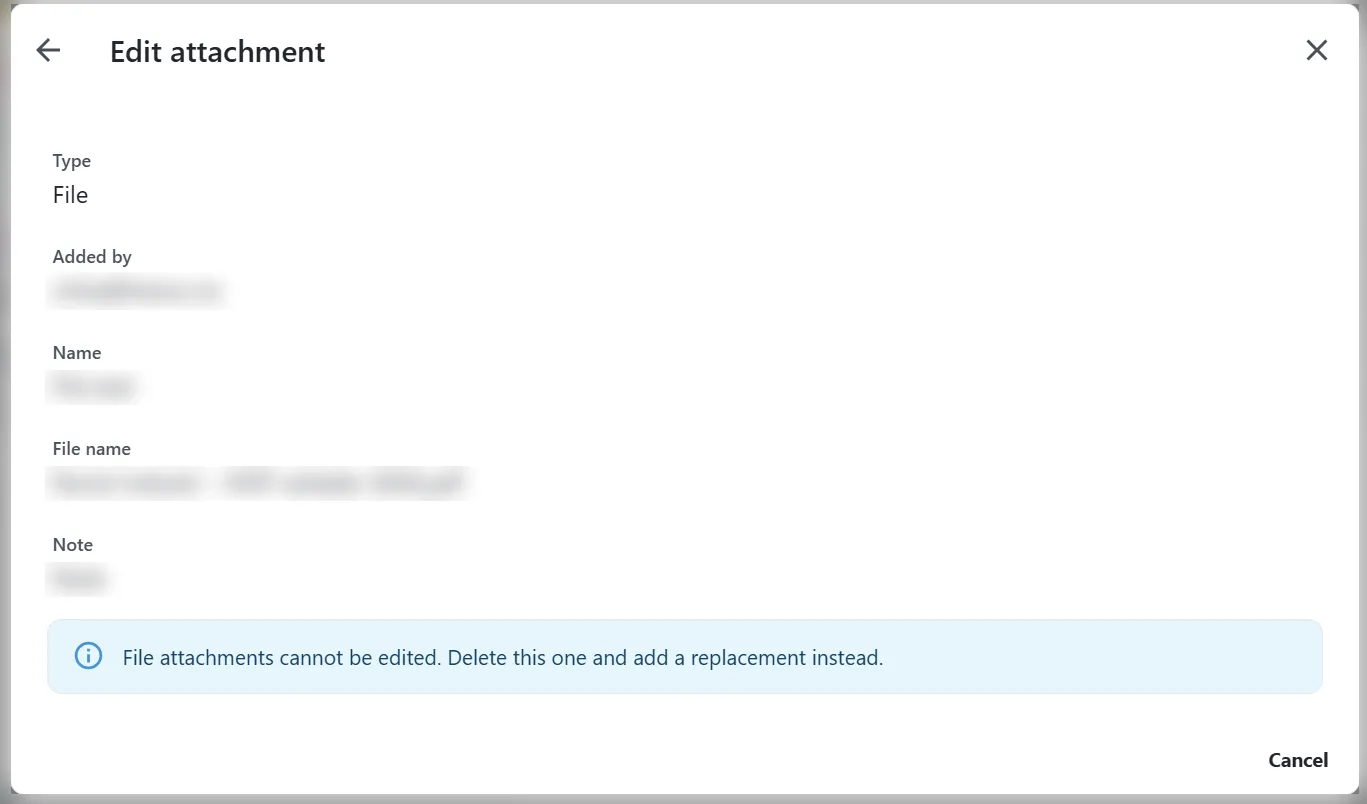
Images and files cannot be changed once uploaded. To replace one, delete it and add the new version. This also applies to the name and note on an image or a file.
Deleting attachments
You can delete attachments you have added yourself. The delete button is disabled on attachments added by someone else, and on attachments that were created in Dynamics 365.
Those can still be deleted in Dynamics 365 by someone with access.