Faster measurement tables with sticky headers
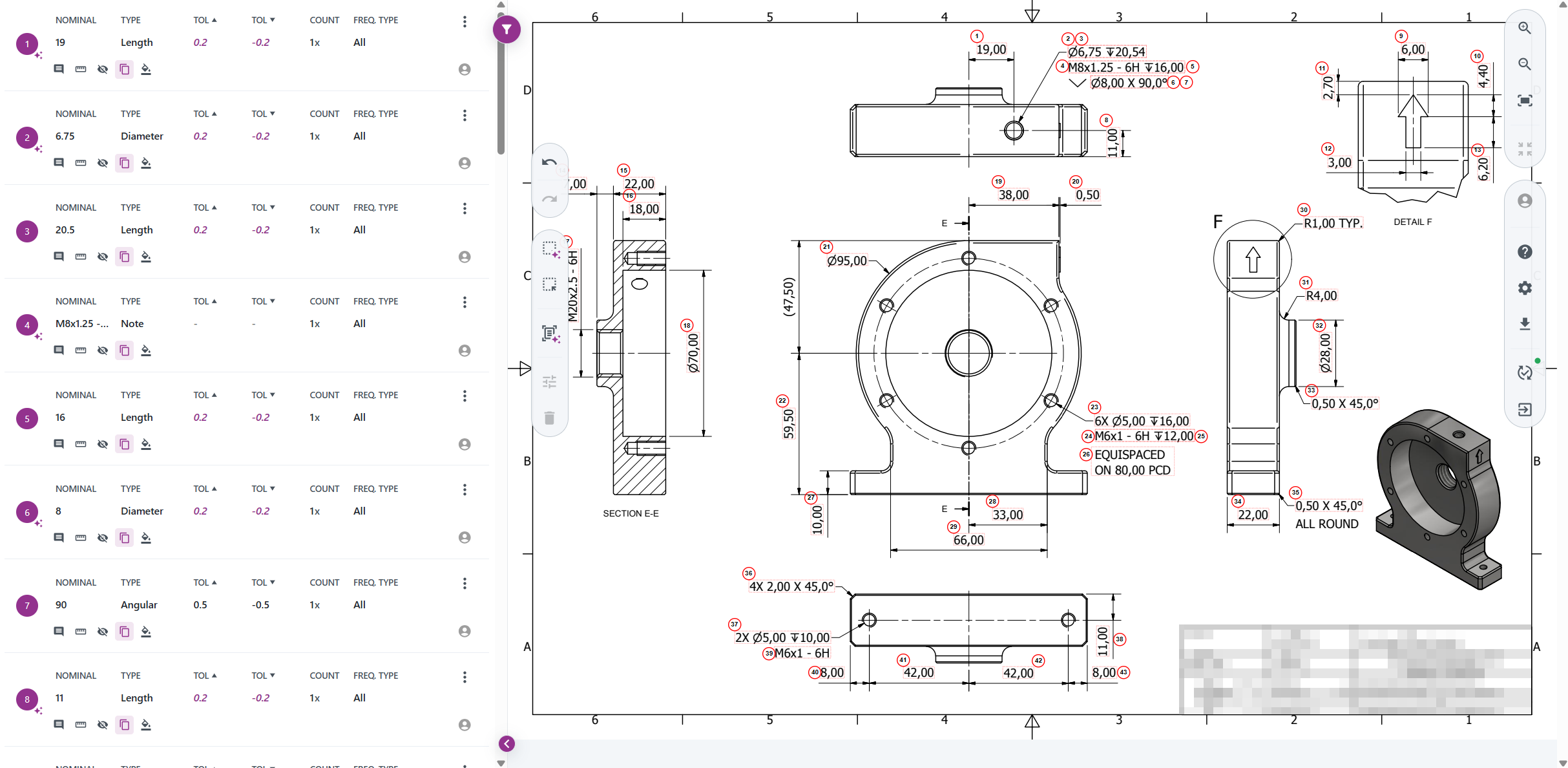

We have reworked how the measurement table inside an Instance renders, making it noticeably faster on large forms and keeping the important context on screen while you scroll.

We have reworked how the measurement table inside an Instance renders, making it noticeably faster on large forms and keeping the important context on screen while you scroll.

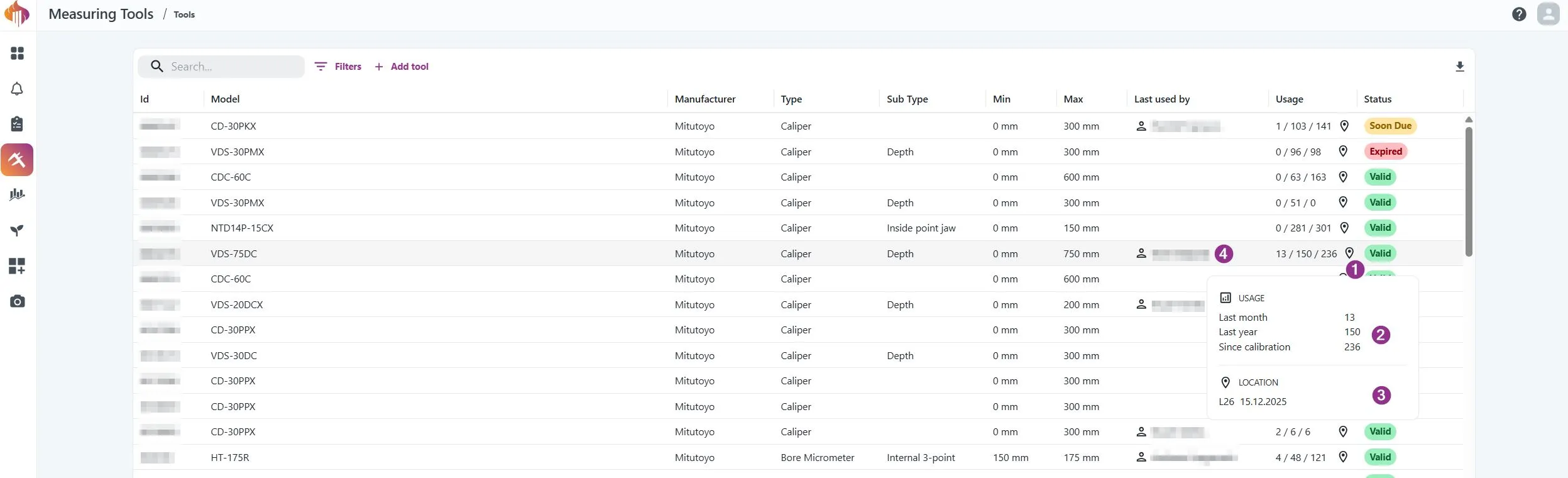
We have had a tracking function in Measuring Tools since the beginning. It has now been refreshed and extended with a useful new feature: last used by tracking.
This improvement is aimed at customers who do not use ERP integrations with Inspect. Previously, tracking was limited to showing the last known resource location, which depended entirely on ERP data.
![]()
1: Hover over the pin to view usage metadata.
2: Shows how many times the tool has been used. This value updates every 10 minutes, not instantly.
3: Location data is only available for customers with ERP integrations.
4: Displays the name of the last operator who used the tool (ℹ️ hover over the name to see the timestamp).
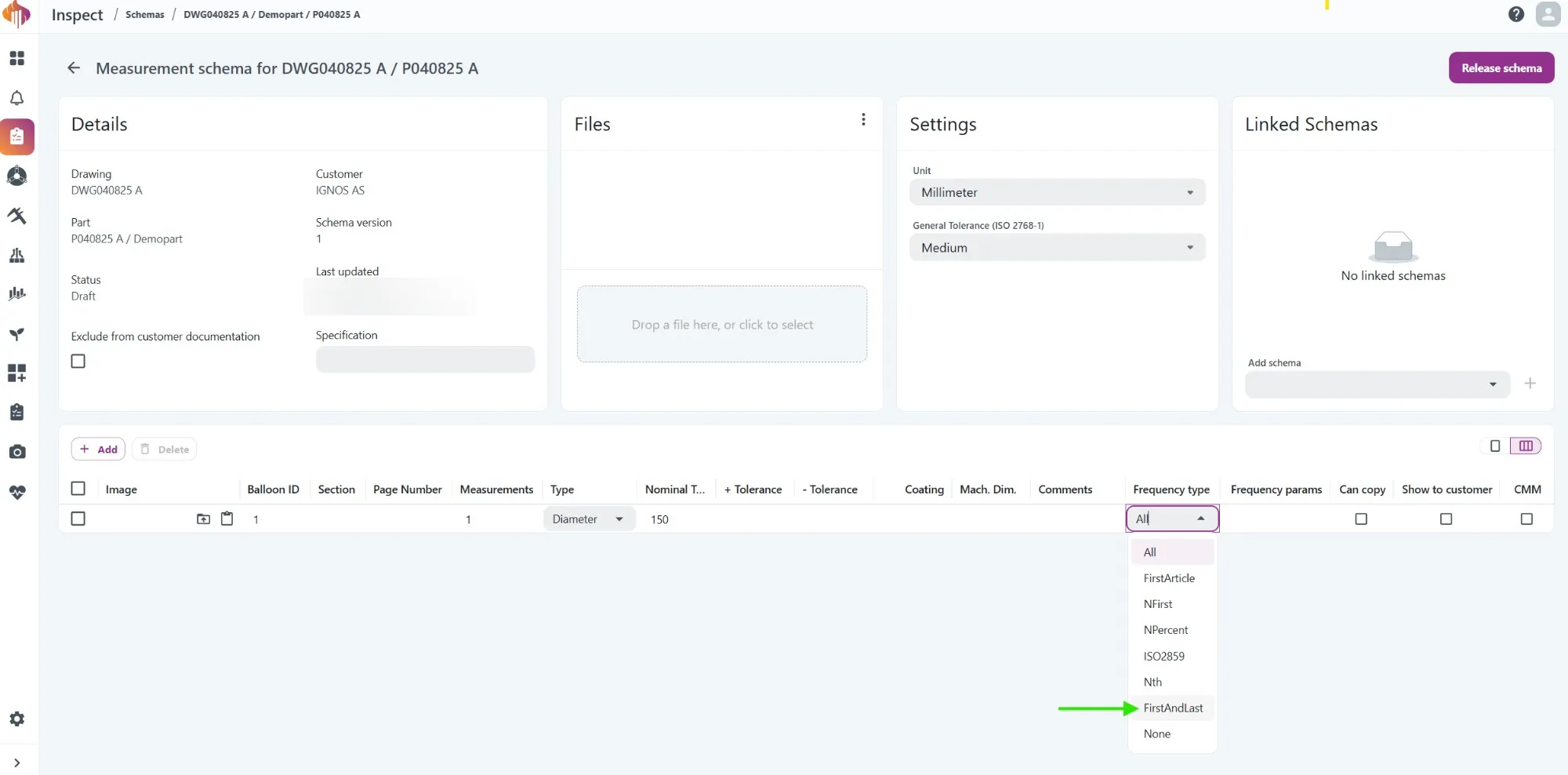
We've introduced a new frequency type for Inspect Schemas: FirstAndLast.

This option is simple to use – it requires documentation of only two sequences in a production series. Once the first and last measurements are documented, the dimension will turn green, and no further documentation is required for that dimension.
We recommend using this as intended: document only the first and last items in the series. However, since we don’t control the order of your production, the system accepts documentation of any two sequences, whether they’re first, last, or otherwise.
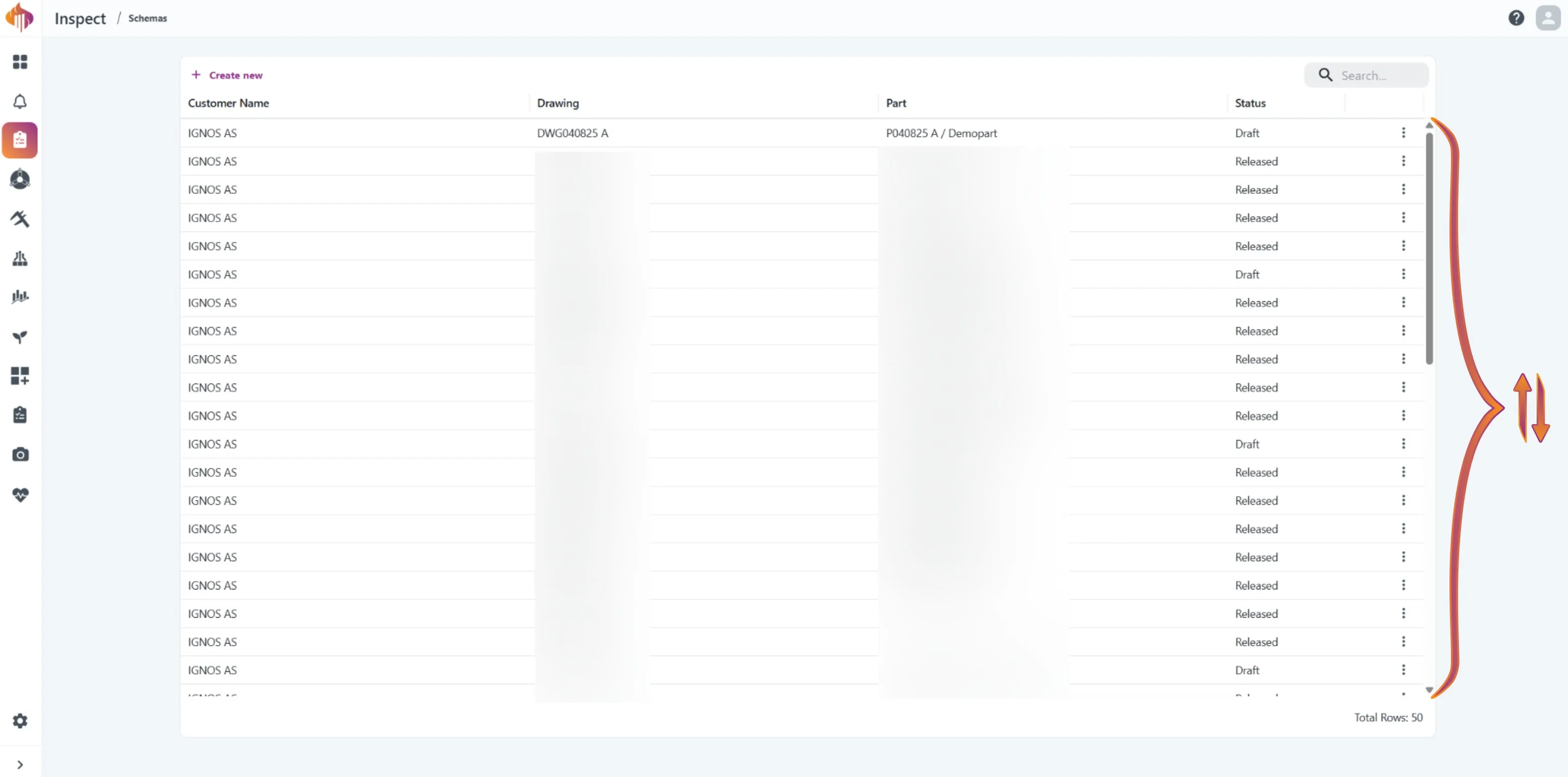
We’ve also adjusted how rows are ordered in Schemas and Instances.
Previously, new rows were added at the bottom, requiring users to scroll or search to find the most recent additions.
Now, the newest rows appear at the top of the list, making them quicker and easier to access.


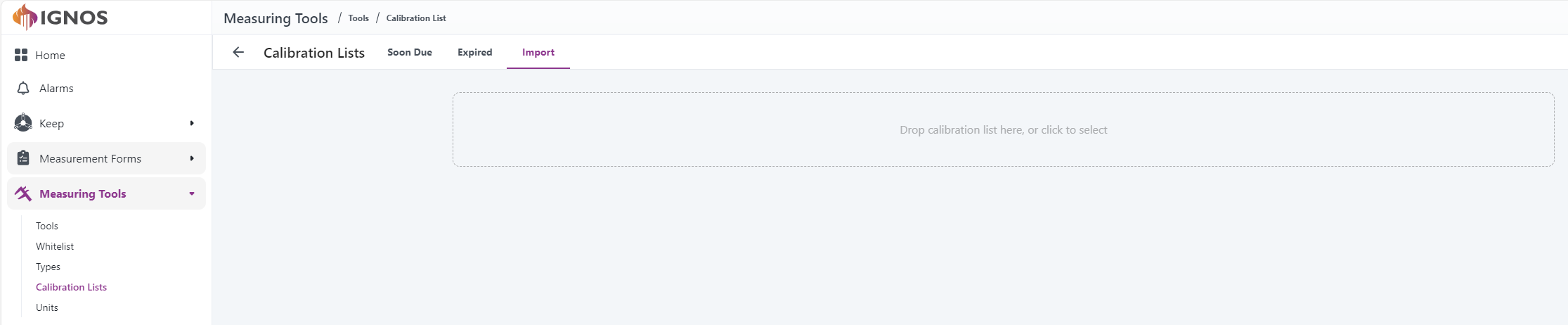
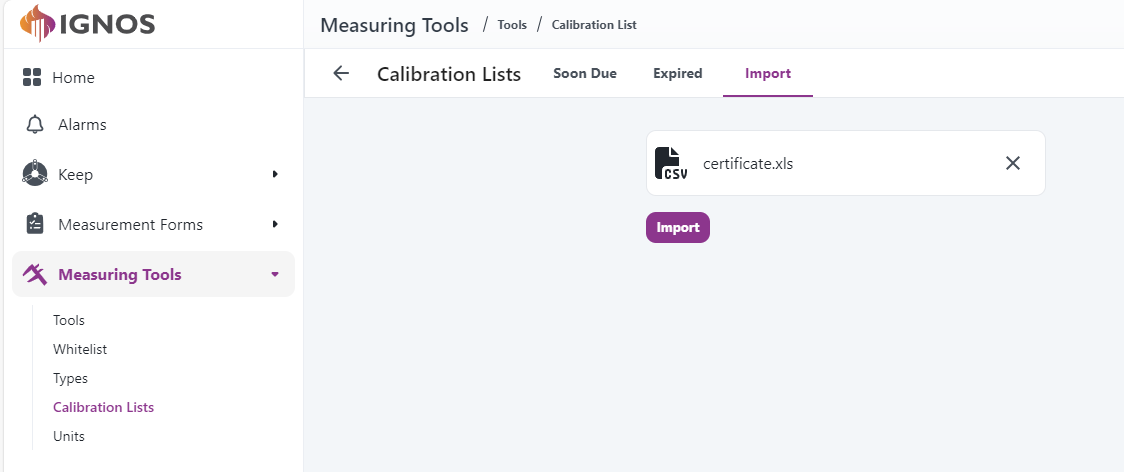
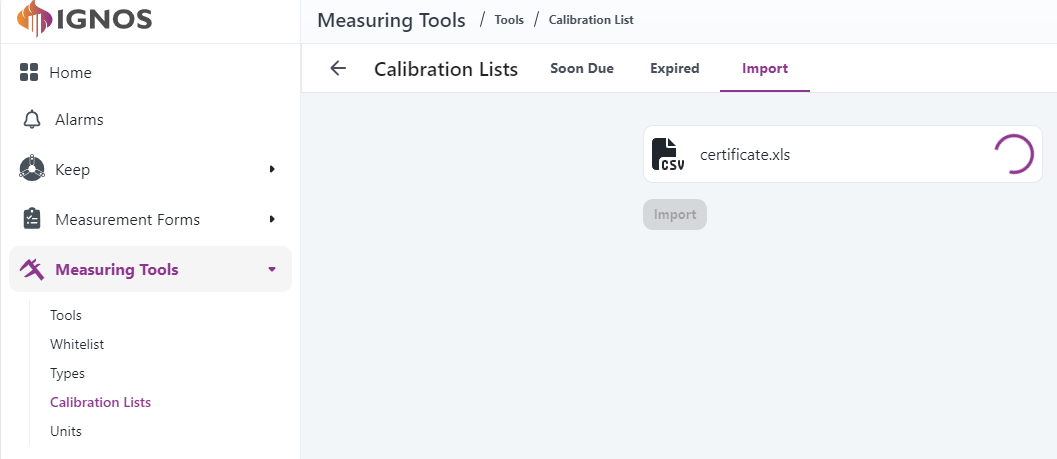
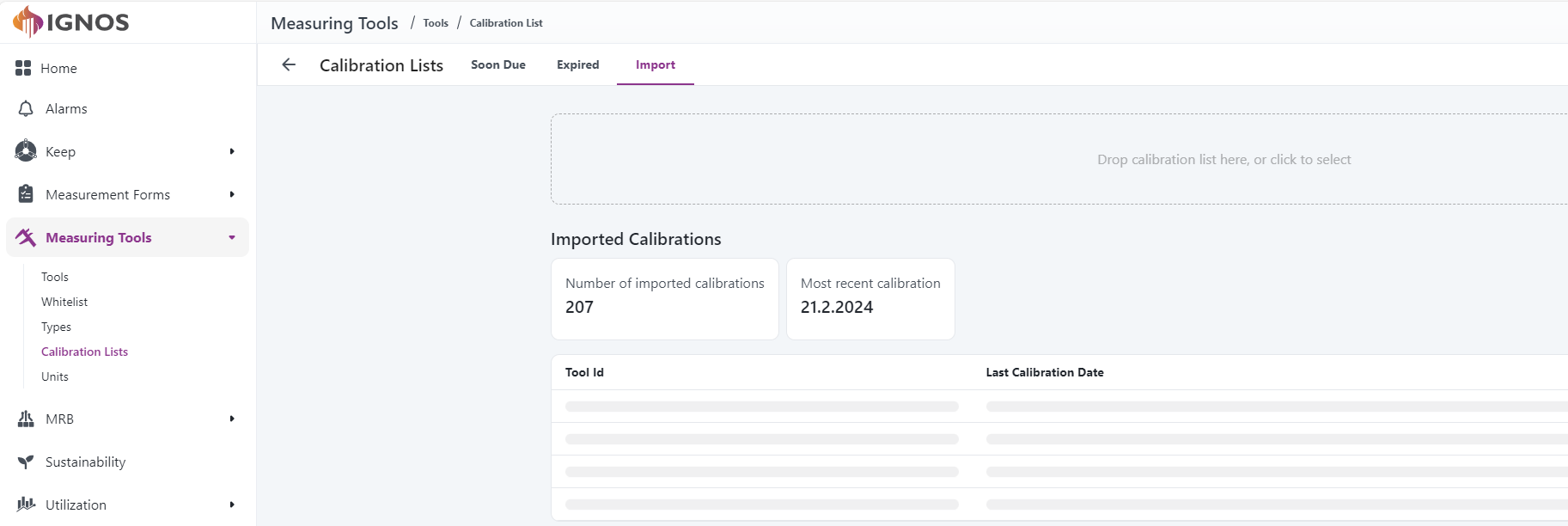
With this feature, users can import calibration data from an external source to avoid manual input. Click the drop zone or drop a supported file onto it to start the process. Contact us to discuss supported file formats.
This feature allows import of suitably formatted calibration data from an external source to IGNOS.
To avoid errors and failed imports, the following rules apply:
When the import has finished, the results are displayed.
First of all, an overview and a list of each tool with at least one calibration imported, and the most recent calibration imported for each tool.

Immediately after the imported calibrations, a list of import errors is shown. This list contains calibrations that should have been imported but have not due to:
Finally, a list of informational messages is available. This list is hidden by default; click on the section to display the list. This list contains calibrations that have not been imported since they: