Inspect Match Documentation - How to
Match is part of Inspect. It automatically checks an uploaded material certificate (e.g. an EN 10204 3.1 mill test certificate) against a Specification you define, and optionally against a Certificate Type's document requirements — producing a pass/fail result per property, which you can review, override, and approve.
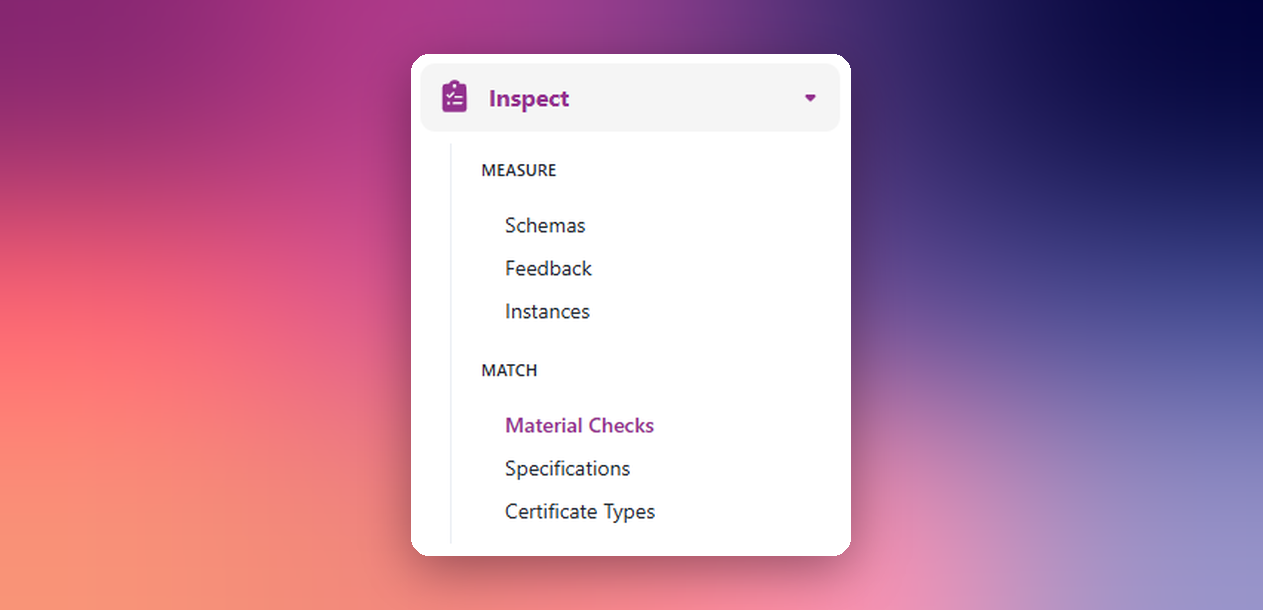
Match has three areas, available from the left navigation under Inspect > Match:
| Area | What it's for |
|---|---|
| Material Checks | The day-to-day workspace: upload certificates and review the check results. This is the default page. |
| Specifications | Reusable definitions of the chemistry, mechanical properties, heat treatment, ferrite content, and document types a certificate must satisfy. |
| Certificate Types | Reusable definitions of which sections a certificate document itself must contain (independent of the values inside it). |
Access is controlled by three roles:
- Admin — full access, including creating/deleting Specifications, Certificate Types, and deleting Material Checks.
- User — can run checks, review, override, and approve/reject results.
- Reader — read-only access.
How it fits together
- An admin creates and releases a Specification (and optionally a Certificate Type).
- A user uploads a material certificate PDF and runs it against that Specification — this creates a Material Check.
- Match uses AI to read the certificate and extract values (chemical composition, mechanical test results, heat treatment, ferrite content, etc.), then compares them against the Specification's required ranges.
- The user reviews the results, resolves any discrepancies, and approves or rejects the check.
Because the extraction is AI-based, it can occasionally misread or miss a value — that's why every result stays reviewable and overridable (see Reviewing results) until it's approved.
Material Checks
Running a Material Check
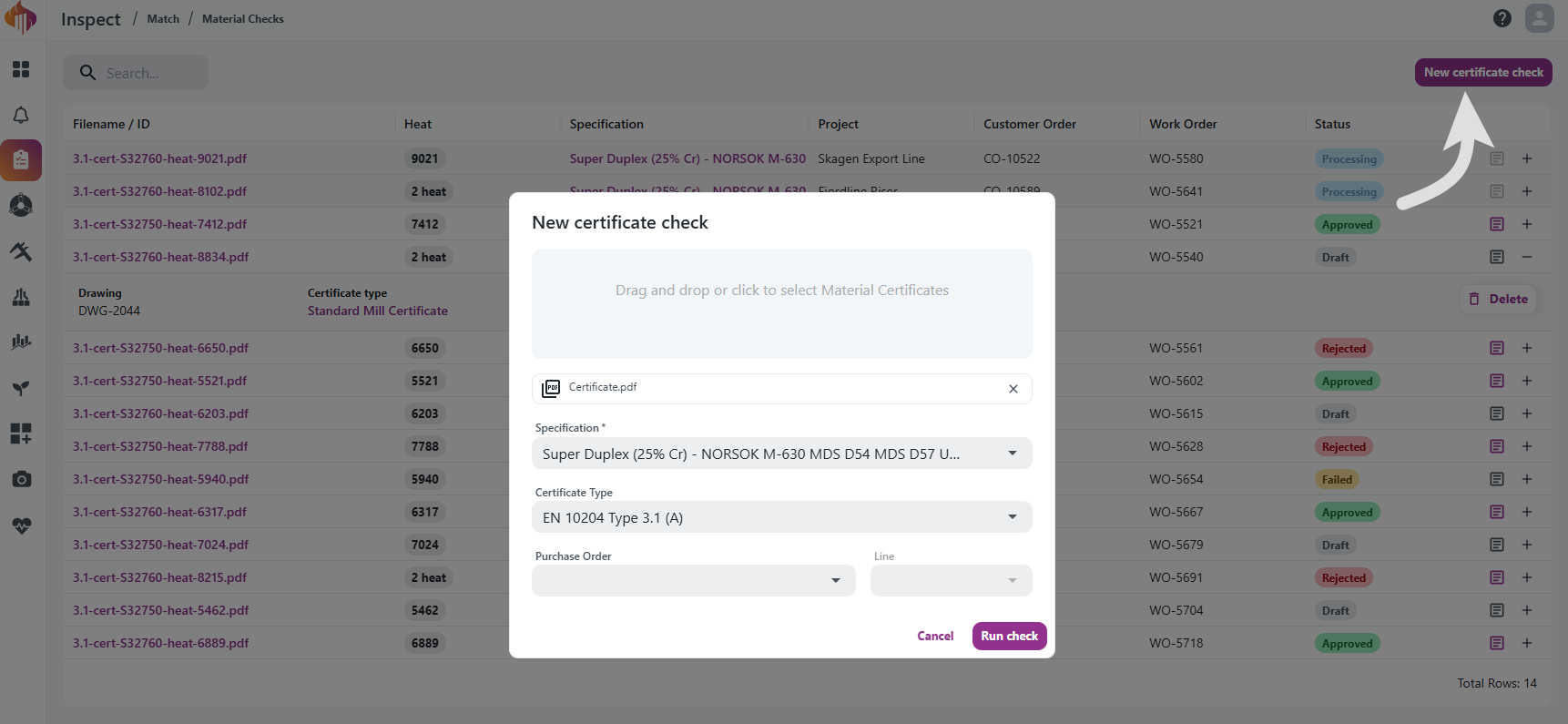
- Go to Match > Material Checks and select New certificate check.
- In the dialog:
- Drag and drop (or click to select) one or more material certificate PDFs — up to 10 files.
- Select a Specification to check against.
- Optionally select a Certificate Type to also validate the certificate's document structure.
- Optionally link a Purchase Order and Line (and, if linked, order details are shown alongside the results).
- Select Run check.
Only Released Specifications and Certificate Types appear in these dropdowns — Draft versions aren't selectable until they're released.
Linking a check to a Purchase Order and Line requires Ignos to be connected to your ERP system. Not every organization has this connection. If yours does, order details are fetched from the ERP and shown alongside the results. If it doesn't, you can still run and review Material Checks as normal, but you can't link them to purchase orders.
The new check appears in the list with status Processing while it's being parsed. Once finished, it moves to Draft and is ready for review.
The Material Checks list
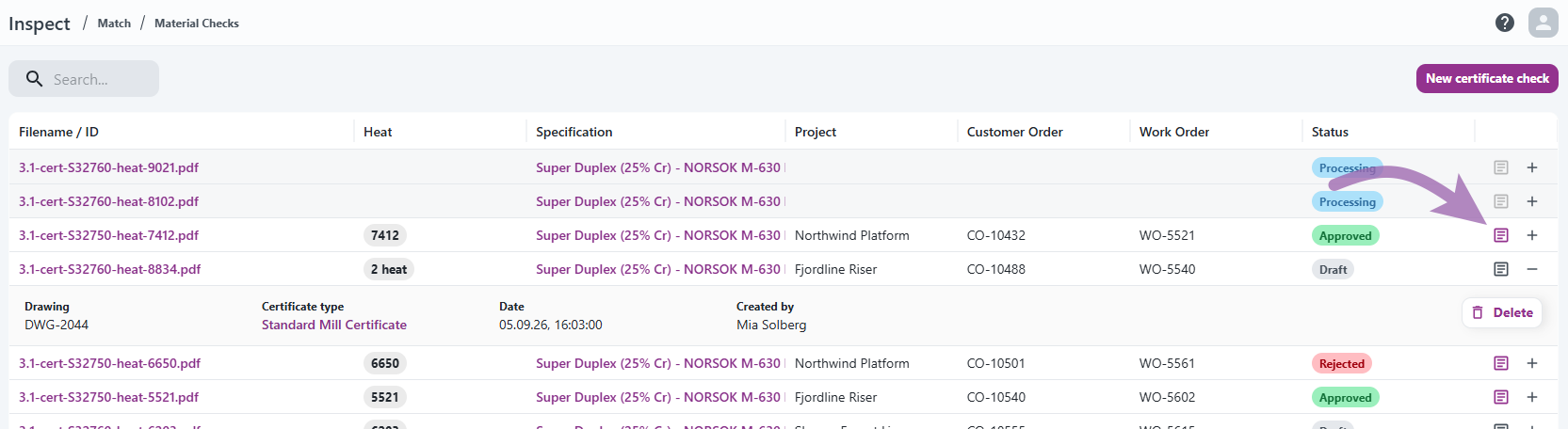
The list shows one row per check, with columns including Filename/ID, Purchase Order, Line, Vendor Batch, Part, Heat, Specification, Project, Customer Order, Work Order, and Status. Use the search field to find a check, and the column filters/sorting in the grid to narrow it down. Columns can be shown or hidden per your organization's settings.
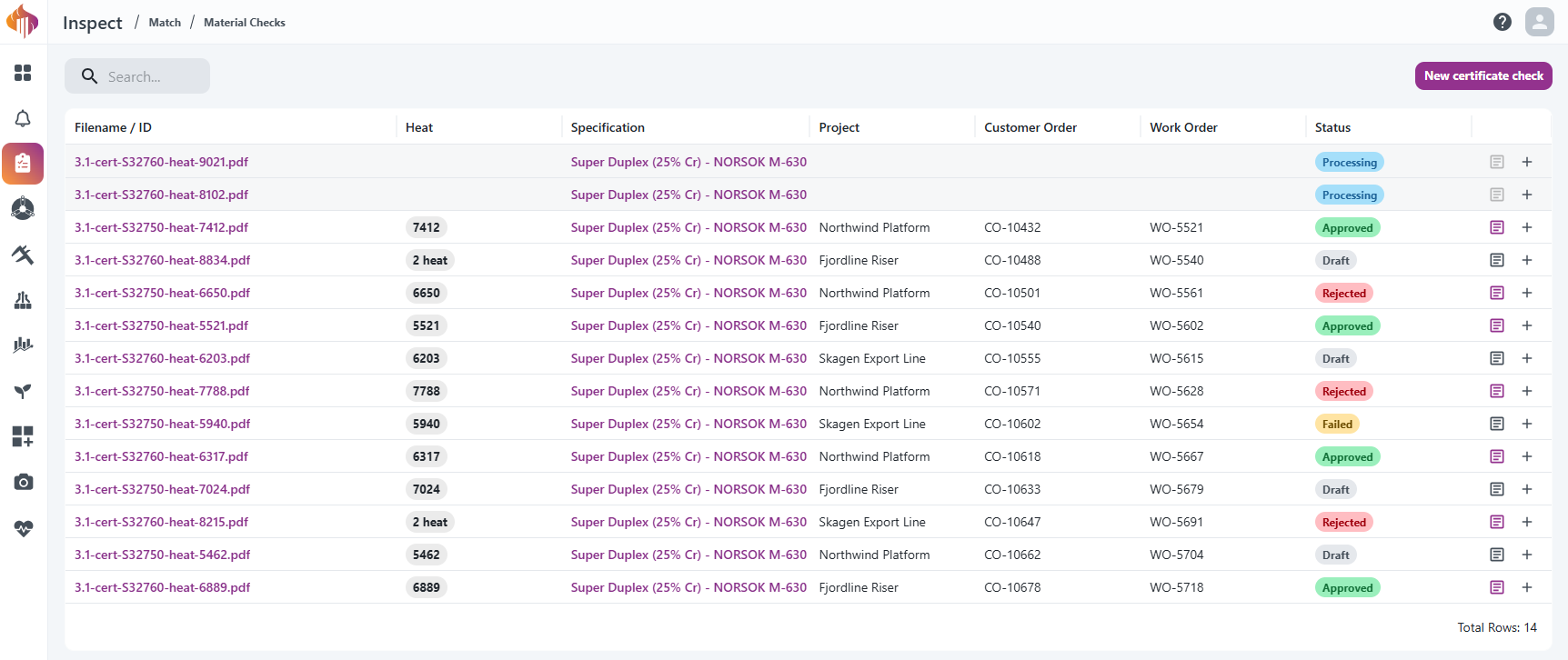
Expand a row to see additional metadata (such as who created the check) and, for deletable checks, a Delete button (see Deleting a Material Check).
Reviewing results
Open a check from the list to see its details.
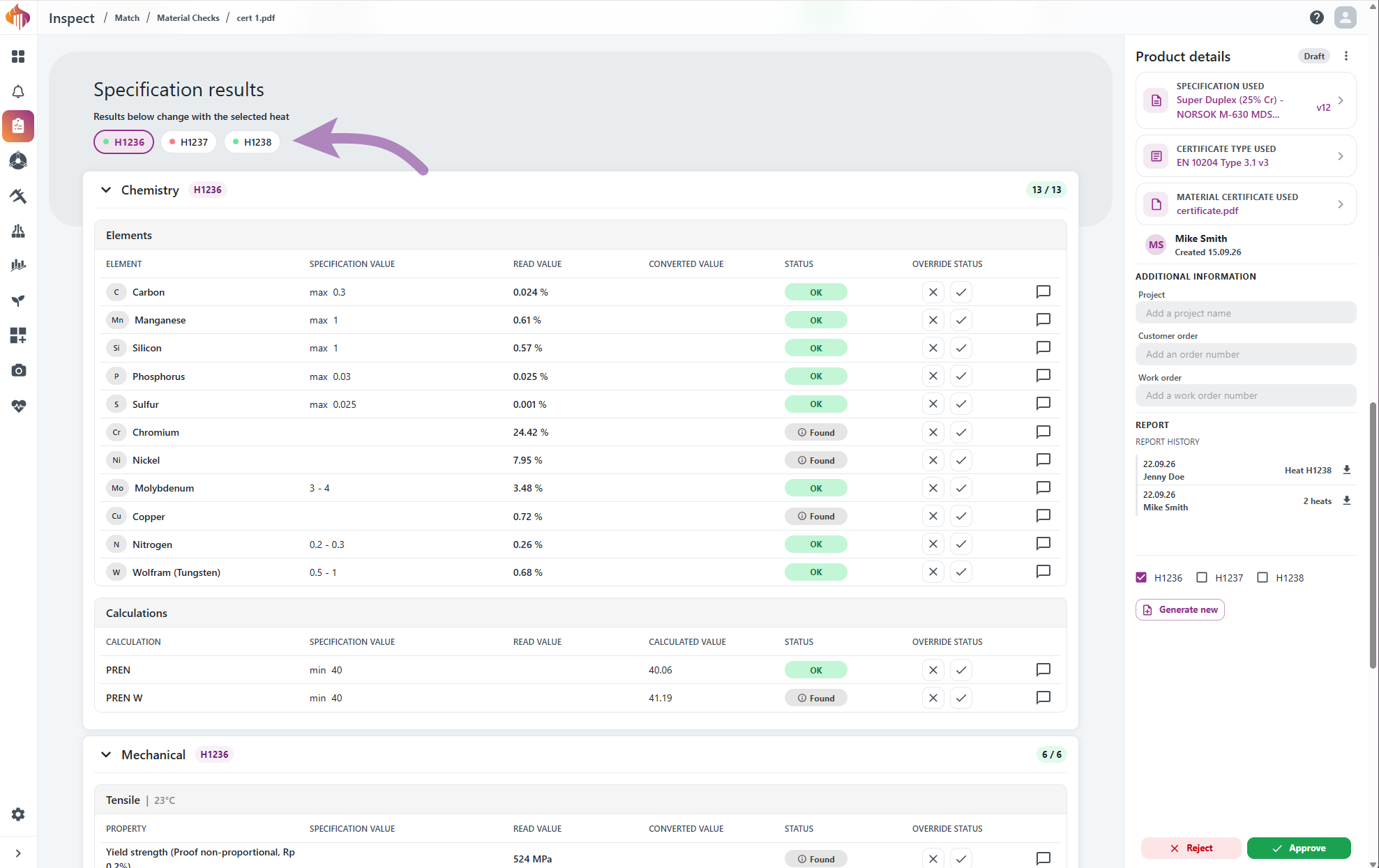
Selecting a heat
If the certificate covers multiple heats (batches), the results are shown per heat. Switch between heats using the chip tabs above the results — each chip has a colored dot (green = no issues, red = has issues) so you can quickly spot which heats need attention.
Result sections
For the selected heat, results are grouped into:
- Chemical analysis
- Mechanical (Tensile, Hardness, Impact)
- Ferrite
- Heat treatment
- Document types
If a Certificate Type was selected, its Certificate Type results are shown as well, listing whether each required section/field was found in the document.
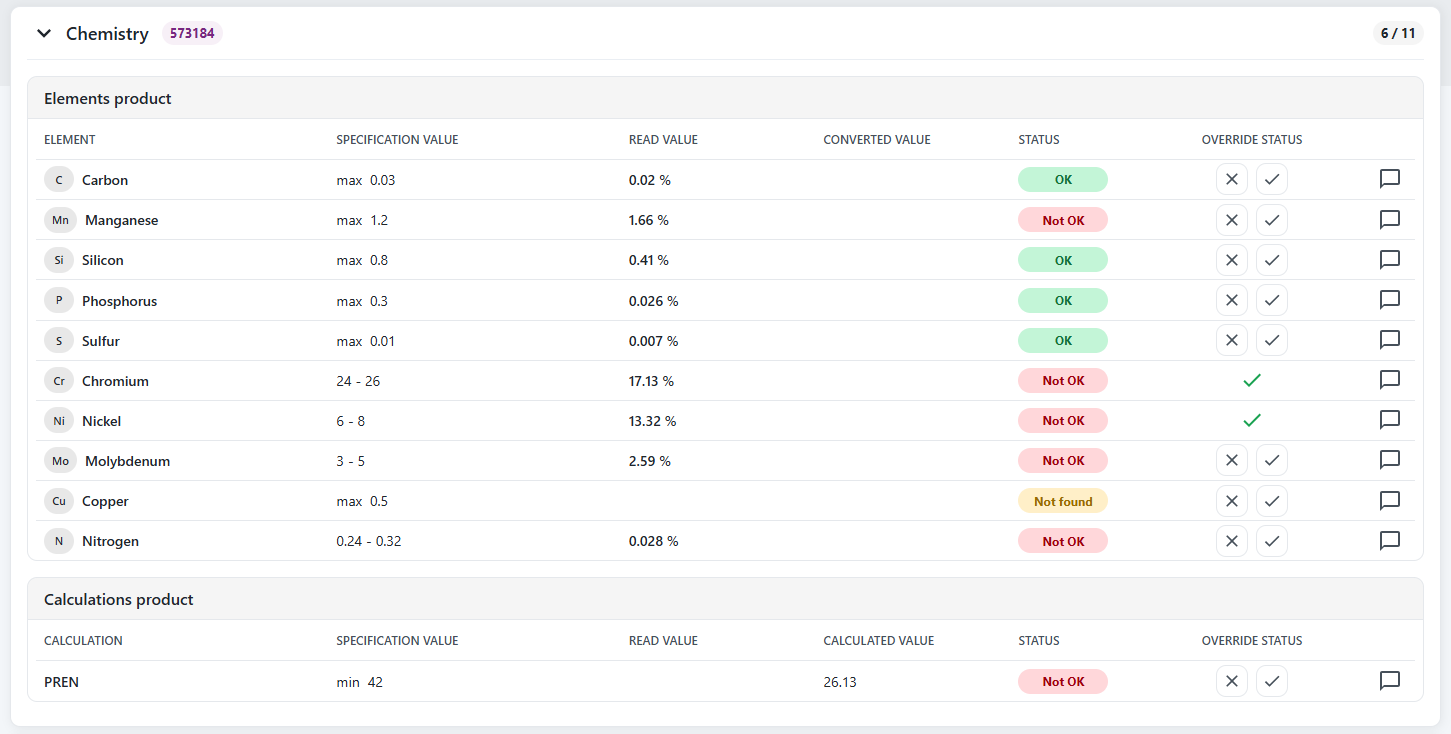
Each line shows a status:
| Status | Meaning |
|---|---|
| OK | Value is within the specification's required range. |
| Not OK | Value is outside the required range. |
| Not Found | The value could not be found in the certificate. |
| Found (shown with a "Not required" tooltip) | Present in the certificate but not a required check. |
| Not set | No result available. |
Unit conversion
Certificates don't always use the same units as your Specification. For example, a certificate may give strength in ksi when the Specification uses MPa, or temperature in °F when the Specification uses °C. Match converts these values automatically to the Specification's unit before comparing them.
The value from the certificate is shown as it was written, and the result of the conversion is shown in Converted value. The OK / Not OK status is based on the converted value.
Overriding a result
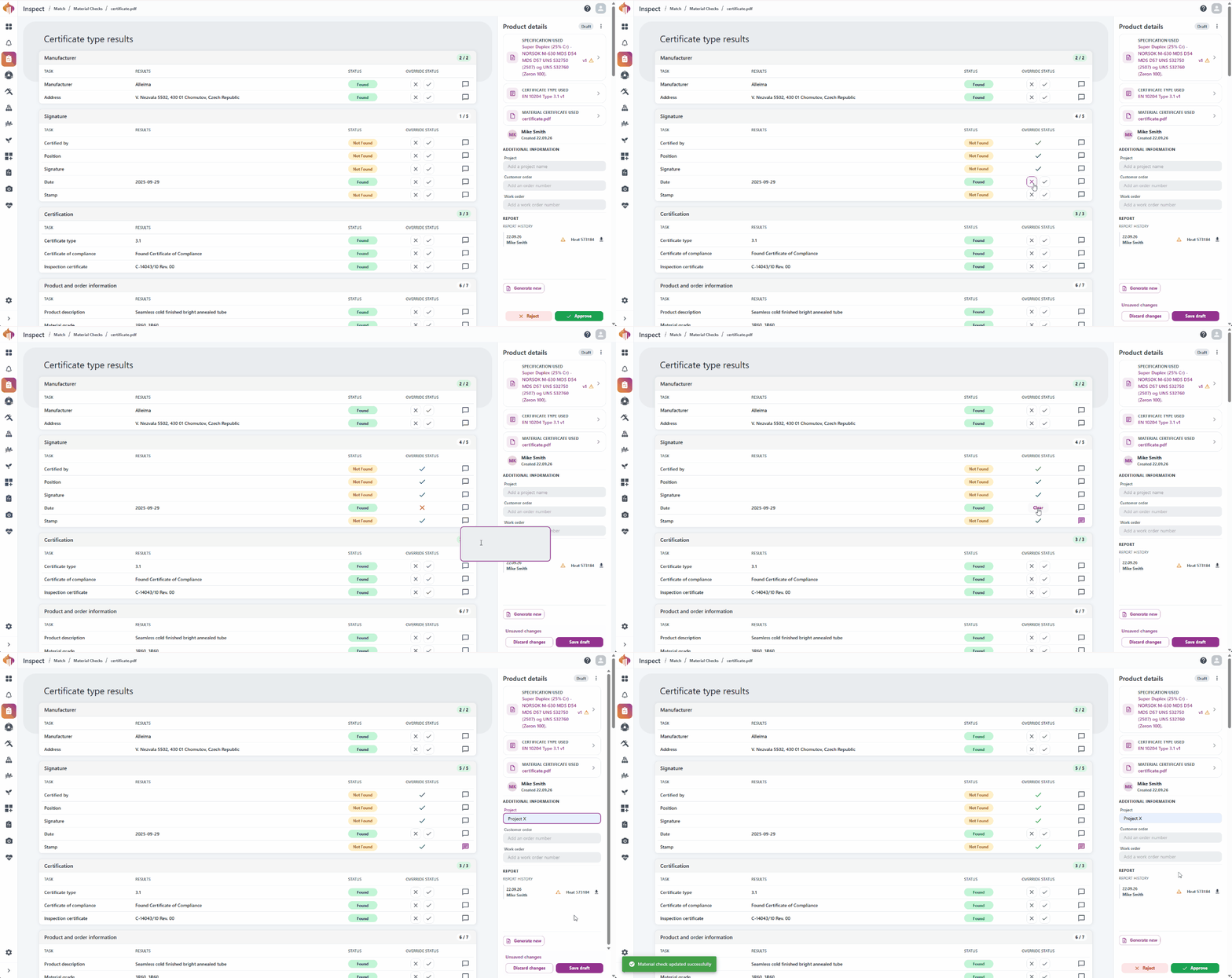
If an automatic result needs correcting (e.g. a value was misread, or a "Not OK" should be accepted for a documented reason), hover over the line and use the checkmark (Approve) or X (Reject) icon to override it manually. Overrides record who made them and when — hover the icon to see details. To remove an override, hover the line and select Clear.
Additional information
In the side panel, you can record or edit:
- Customer order
- Project
- Work order
You'll see Save draft / Discard changes actions until you save, and you'll be warned if you try to navigate away first.
Approving or rejecting a check
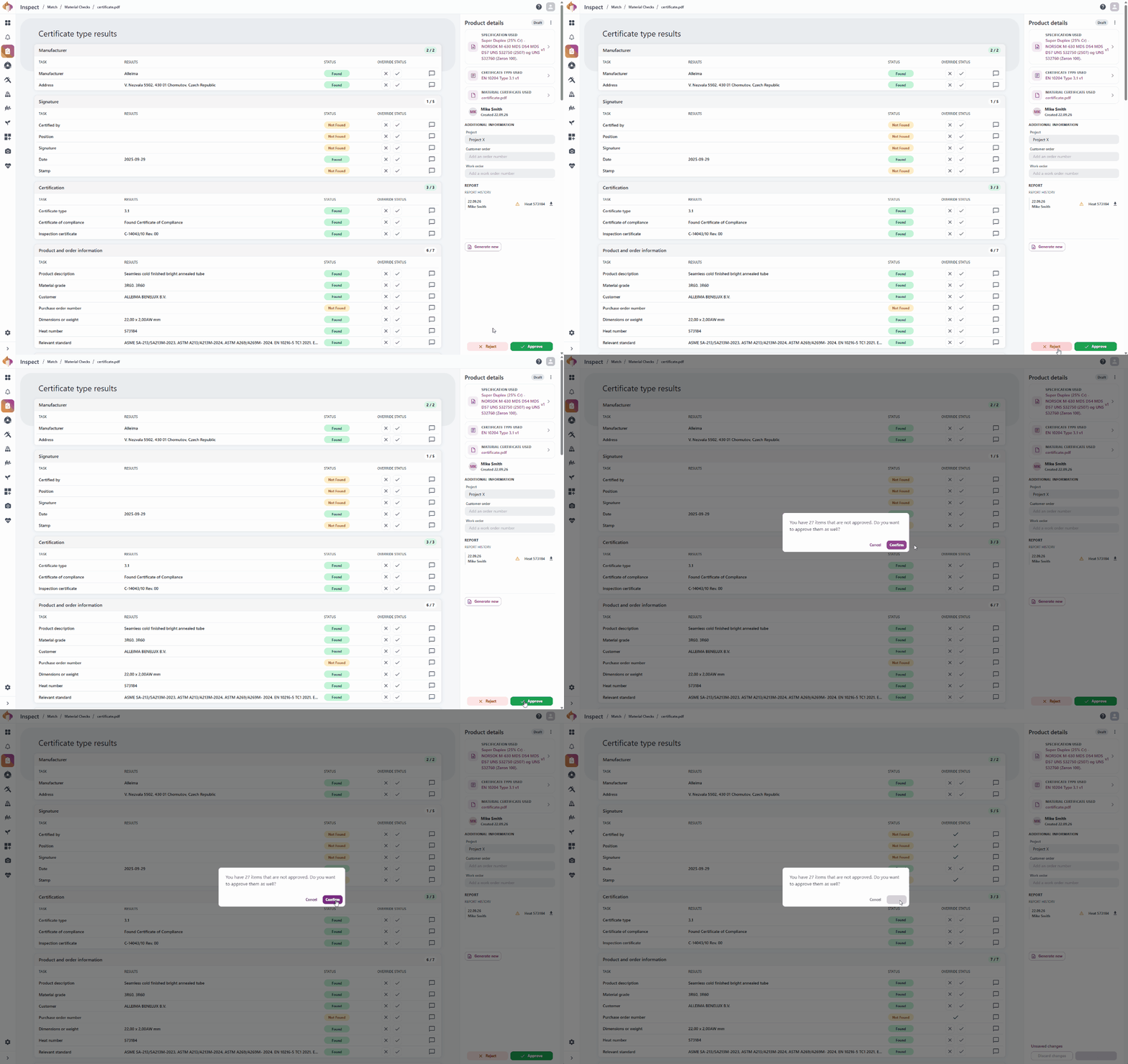
While a check is in Draft, use the action bar at the bottom of the side panel to Approve or Reject it. You'll be asked to confirm — if there are still unresolved result lines, you'll be warned and given the option to approve them too.
Once approved or rejected, you can select Revert to draft to reopen it for further review.
Material Check statuses
| Status | Meaning |
|---|---|
| Processing | Certificate uploaded, still being parsed. |
| Draft | Ready for review — approve/reject and overrides are available. |
| Approved | Reviewed and approved. |
| Rejected | Reviewed and rejected. |
| Failed | Processing failed (e.g. the certificate couldn't be parsed). |
Generating a report
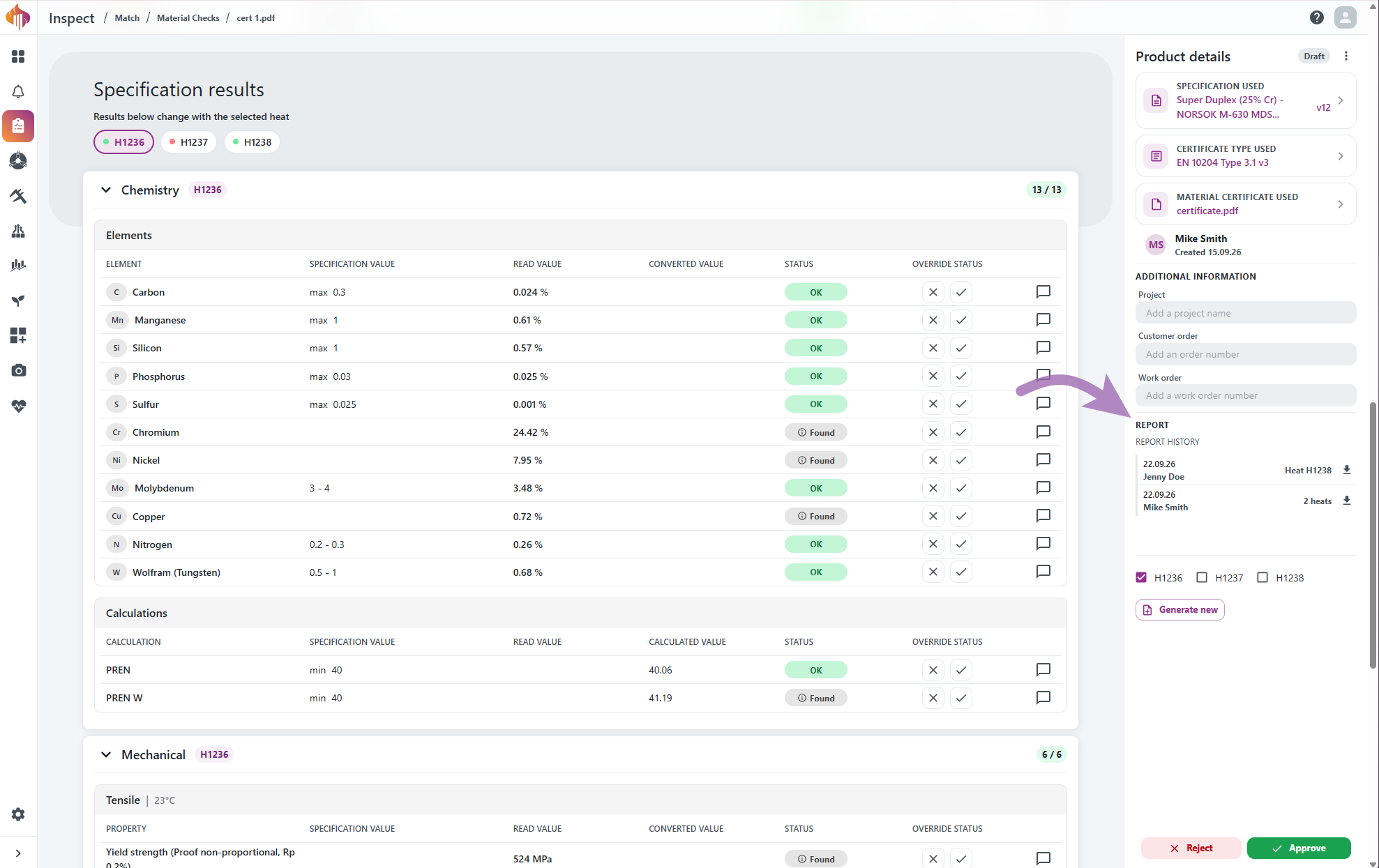
From the Report section of the side panel (or the report icon on a row in the list), select Generate new. If the check covers multiple heats, choose which heat numbers to include.
Generated reports appear in the Report history, showing the generation date, who generated it, and a download link. If the check has changed since a report was generated, that report is flagged as Outdated.
Deleting a Material Check
Admins can permanently delete a Material Check while it's in Draft or Rejected status. This removes it from the list entirely and cannot be undone — it's different from Reject, which just marks the check as rejected but keeps the record.
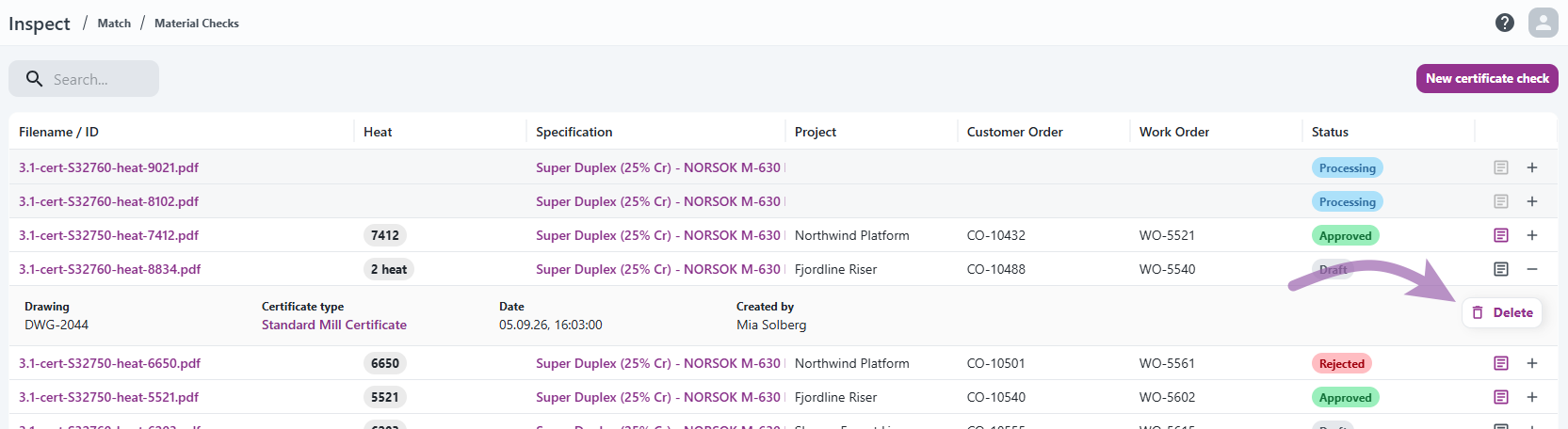
To delete:
- From the list, expand the row and select Delete (see the screenshot above), or
- From the details page, open the Product details "..." menu and select Delete.

Specifications
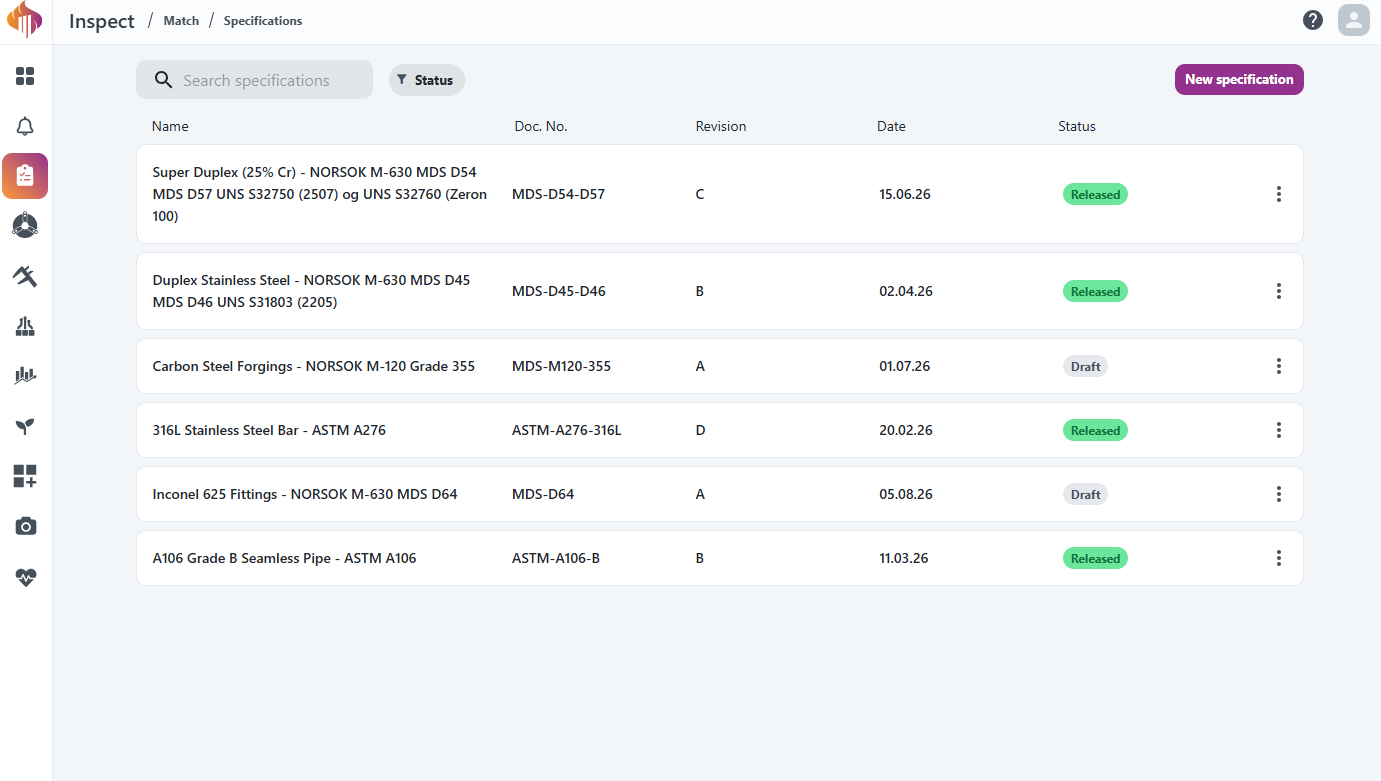
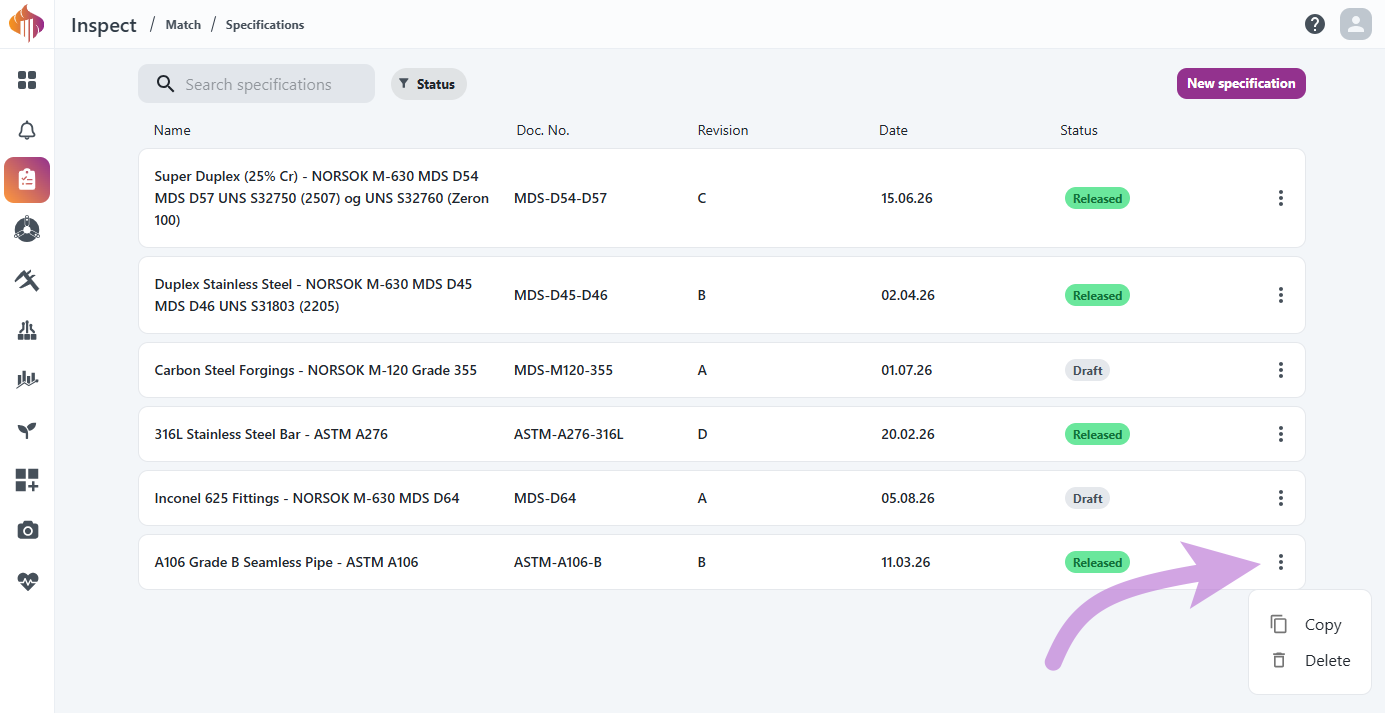
Go to Match > Specifications to see all specifications. Filter by Status (Draft/Released) or search by name.
Creating a specification
Admins can select New specification to create one from scratch.
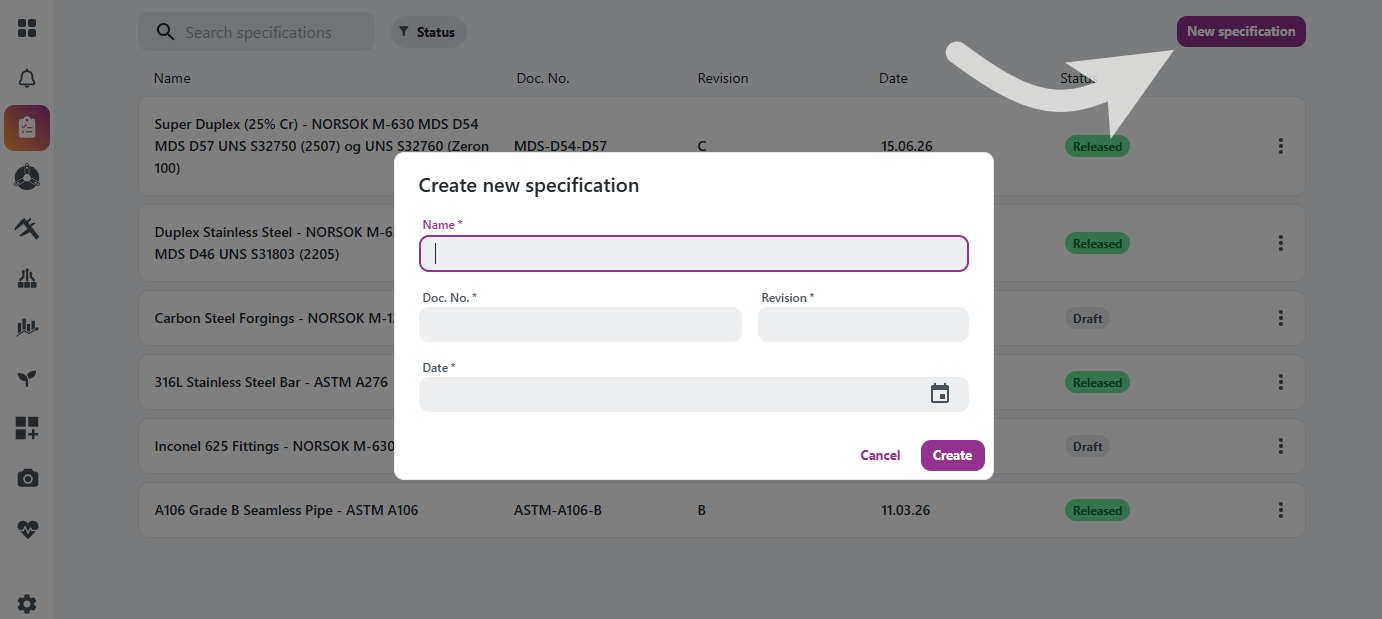
A specification is organized into sections:
| Section | Defines |
|---|---|
| Document types | Which certificate documents/sections are required |
| Chemistry | Element composition ranges + derived calculations (e.g. PREN) |
| Mechanical | Tensile, hardness, and impact test requirements |
| Ferrite | Required ferrite content range |
| Heat | Required heat treatment steps (heating/cooling) |
Editing a specification
Only admins can edit, save, release, copy or delete specifications.
-
Open the specification.
- If it is a Draft, you can edit it directly.
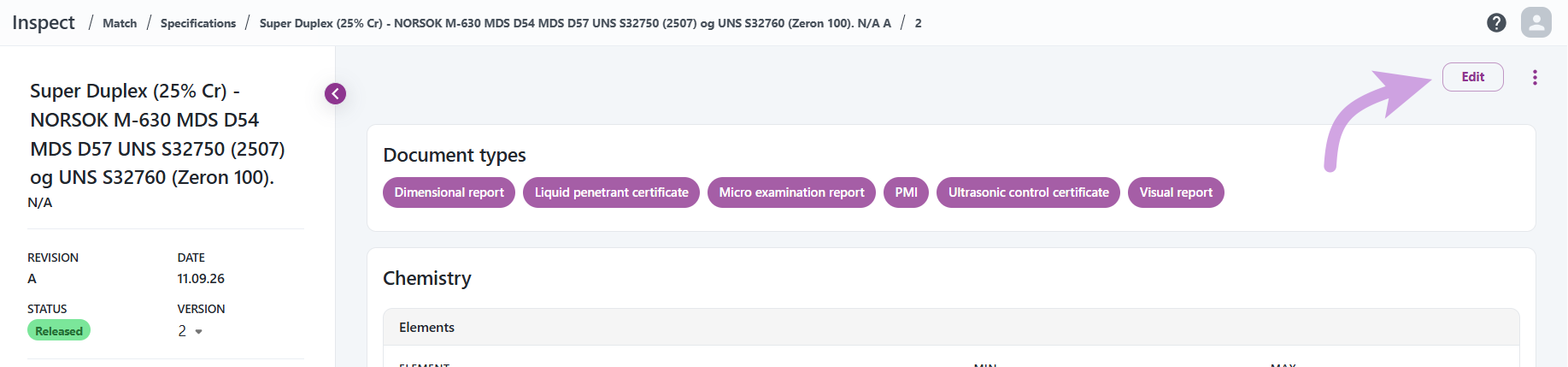
- If it is Released, select Edit to create a new draft version based on it.
-
Make your changes (see below). An Unsaved changes label is shown until you save.
-
Select Save draft to keep your changes without releasing them, or Release new version to make the draft the active version.
If you release a draft that is older than the latest released version, you will be asked to confirm. The draft then replaces it as the latest version.
What you can change
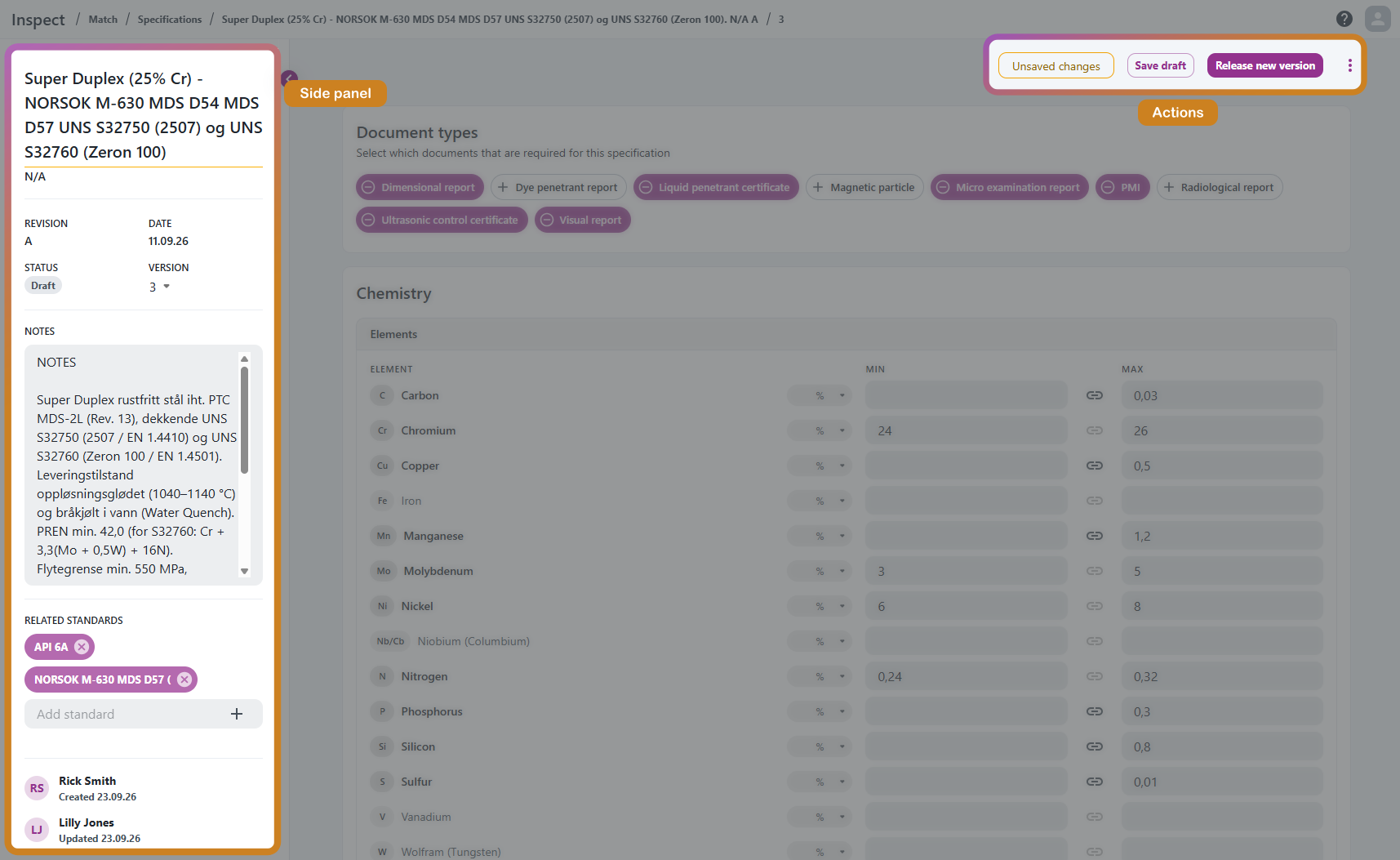
Side panel
| Field | Description |
|---|---|
| Name | Select the name (or the pencil icon) to rename the specification. |
| Notes | Free text for comments or context about this version. |
| Related standards | Type a standard (e.g. NORSOK M-630) and press Enter to add it. Remove it with the chip's delete icon. |
Number, revision, date, status and created/updated info are shown for reference only.
Document types
Select a document type to mark it as required. Select it again to remove it. Selected types are highlighted.

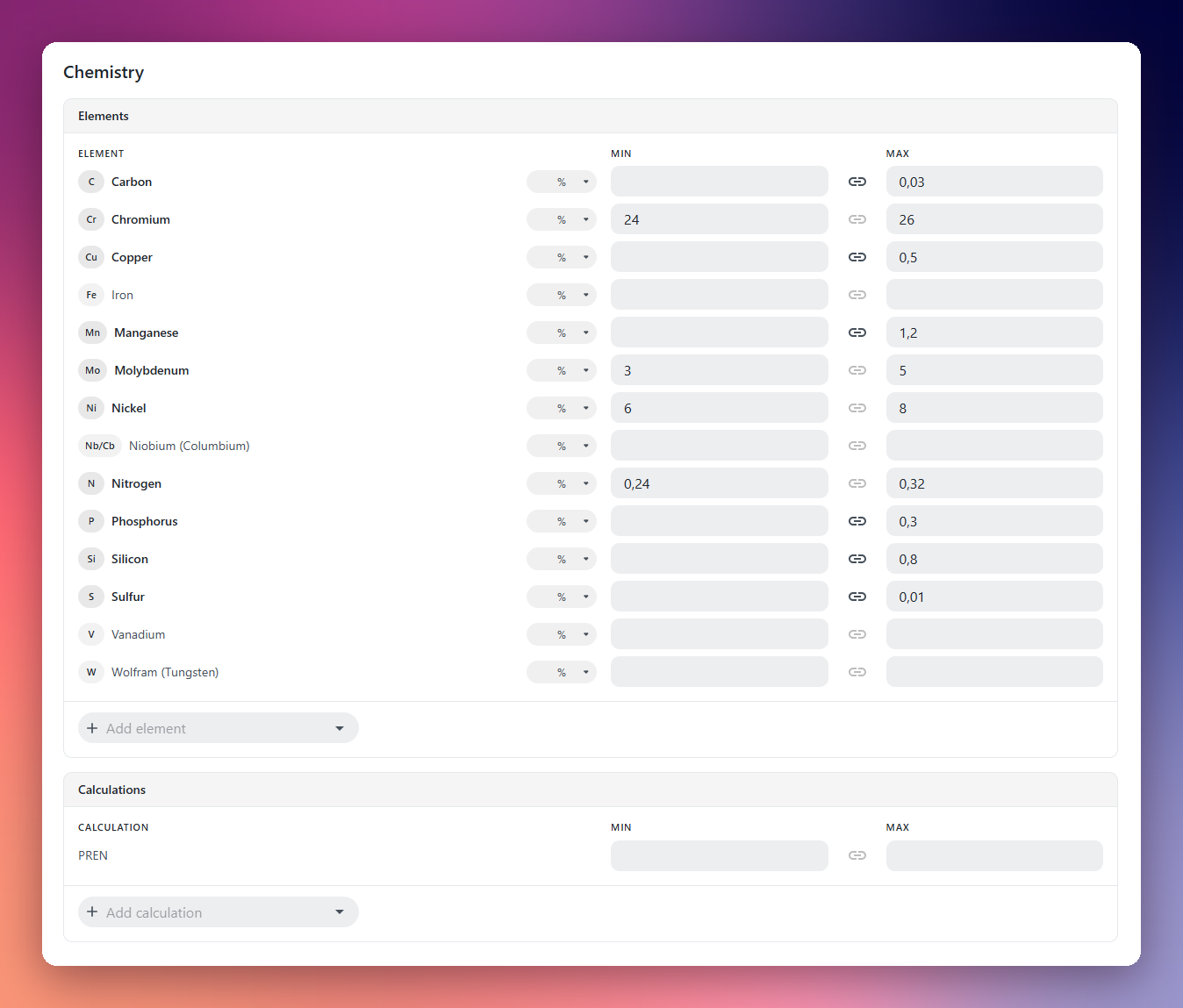
Chemistry
- Elements: Set min and/or max for each element. Use Add element to add elements that are not in the default list. Added elements can be removed again, default elements cannot.
- Calculations: Derived values such as PREN. Use Add calculation to add one. The formula is shown in the dropdown.
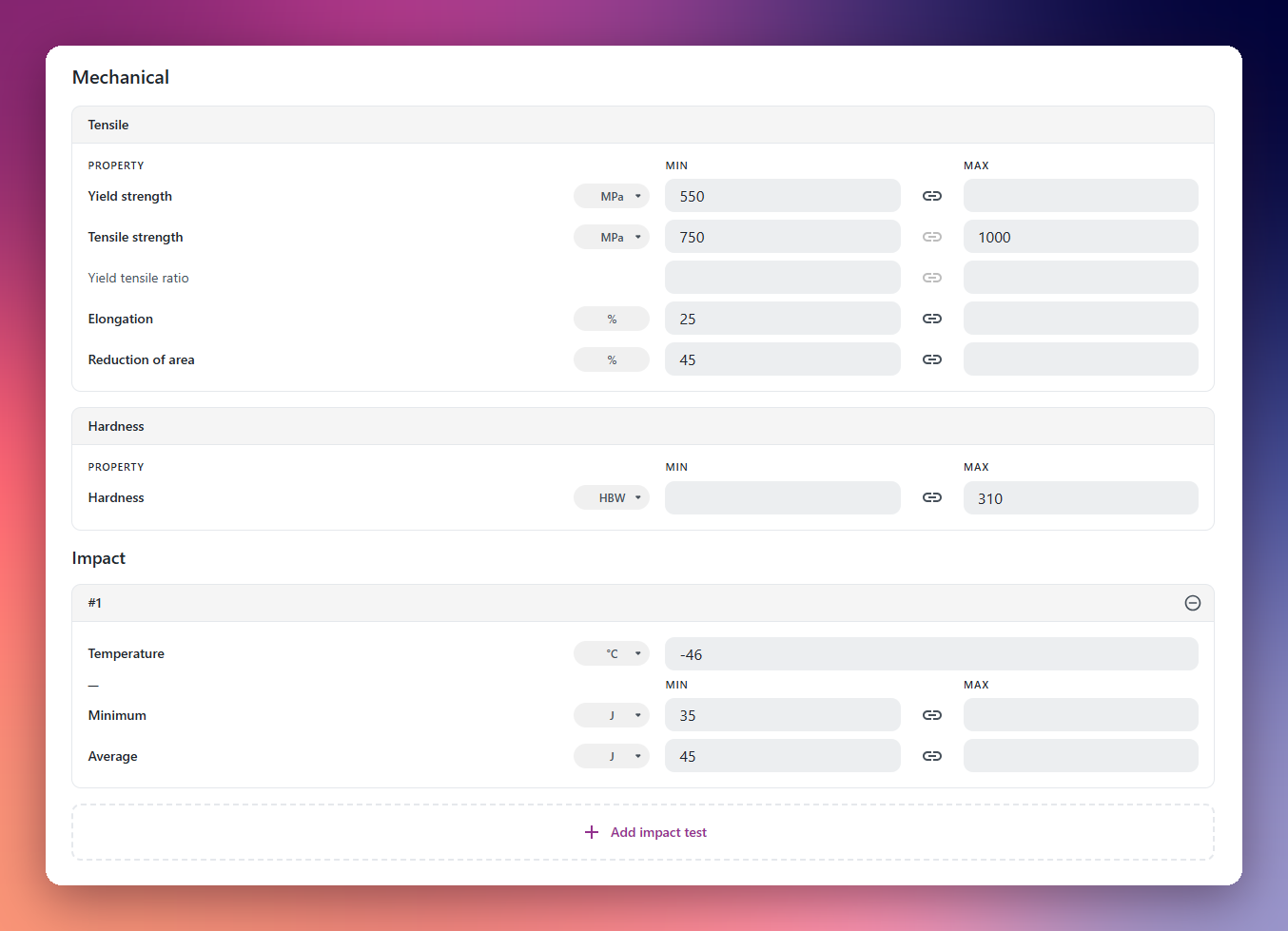
Mechanical
- Tensile: Yield strength, tensile strength, yield/tensile ratio, elongation and reduction of area.
- Hardness: Hardness range.
- Impact: Select Add impact test to add a test with a temperature, a minimum value and an average value. You can add several tests, but each must have a different temperature.
Select a unit for each value where a unit selector is shown. If a certificate uses a different unit, Match converts it automatically (see Unit conversion).
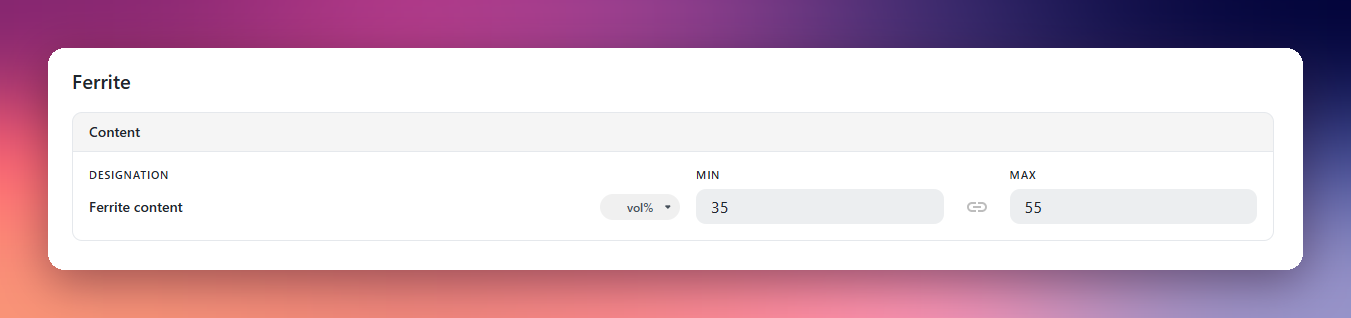
Ferrite
Set the allowed ferrite content range and choose its unit.
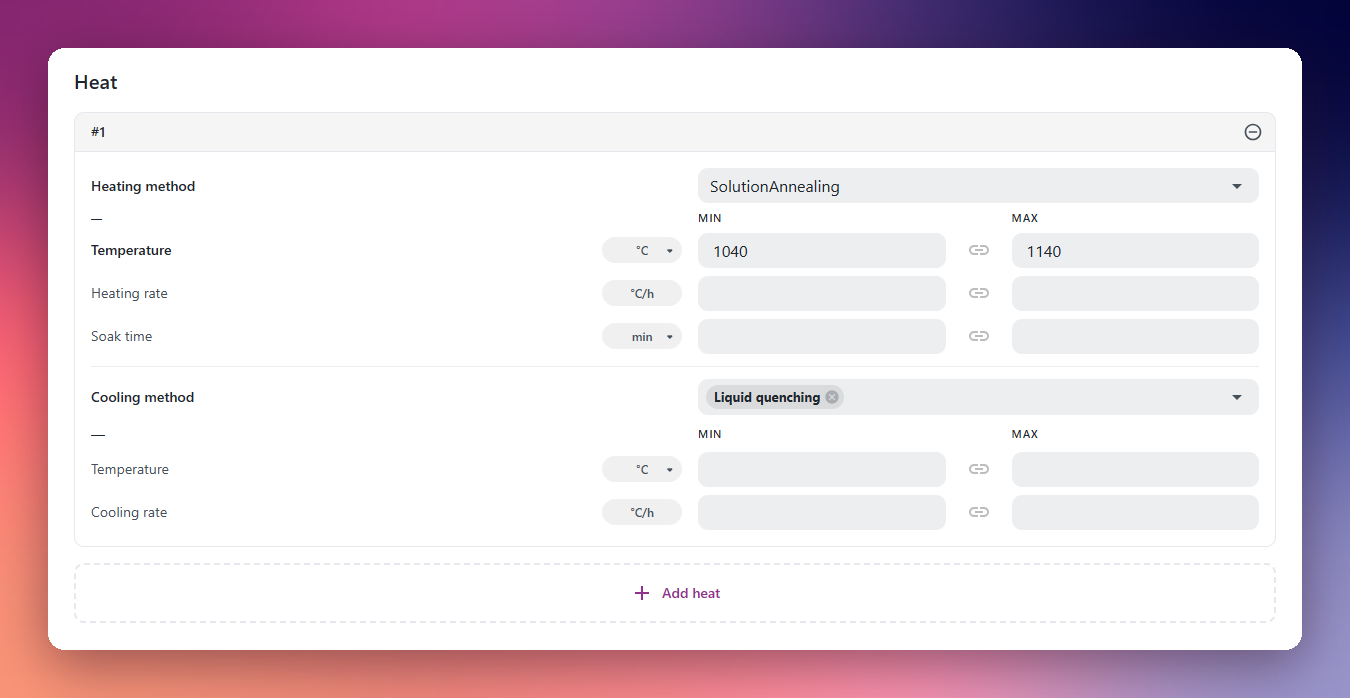
Heat
Select Add heat to add a heat treatment step. Steps are numbered in order.
- Heating: Method, temperature, heating rate and soak time.
- Cooling: One or more cooling methods, temperature and cooling rate.
Entering values
Most requirements have a min and a max field:
- Fill in only min for "at least" and only max for "at most".
- Fill in both to set a range.
- To require an exact value, enter it in one field and select the link icon. The value is copied to the other field.
Empty fields are ignored, and sections without values are hidden when viewing a released version.
Versioning
Specifications are versioned:
-
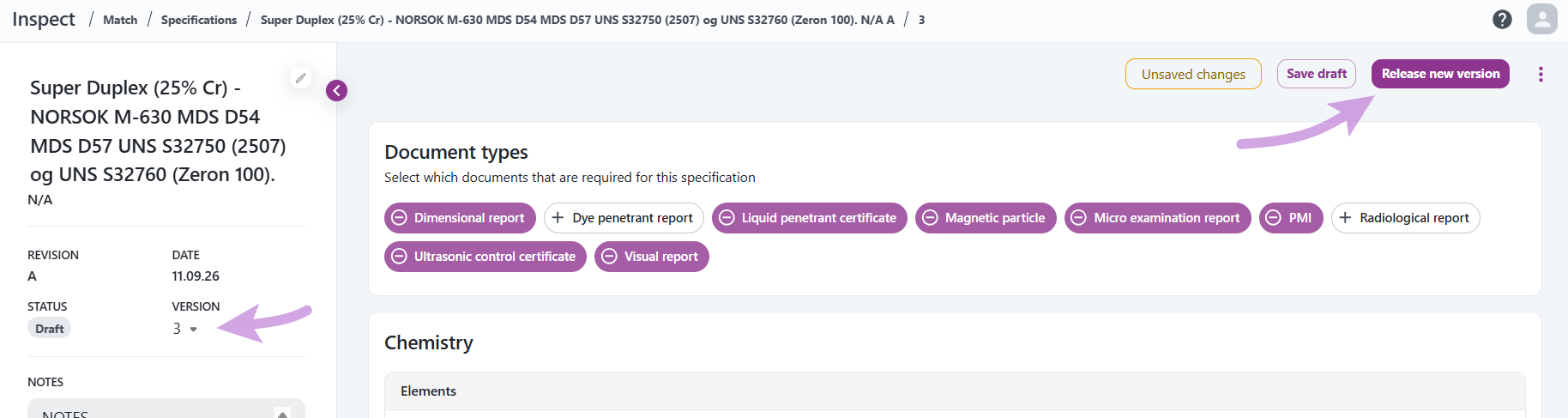
A Released specification is read-only. Select Edit to create a new Draft version to work on — this doesn't affect the released version, which stays in use for existing checks.
-
Once your changes are ready, select Release new version to publish it. Only Released versions can be selected when running a new Material Check — a Draft version must be released first.
Copying and deleting
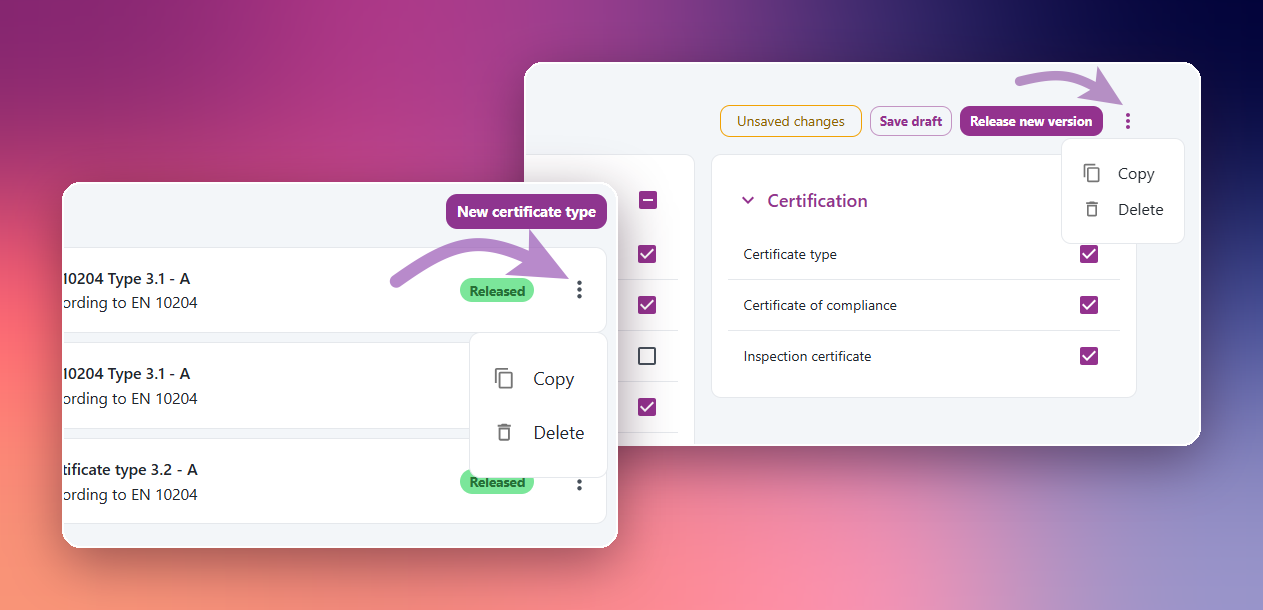
From the list or the detail page, open the "..." menu to Copy a specification (a quick way to use an existing one as a starting point) or Delete it. Admins can delete a specification in either Draft or Released status.

Certificate Types
Go to Match > Certificate Types to see all certificate types. A Certificate Type defines which sections a certificate document must contain, grouped by section, as a checklist.
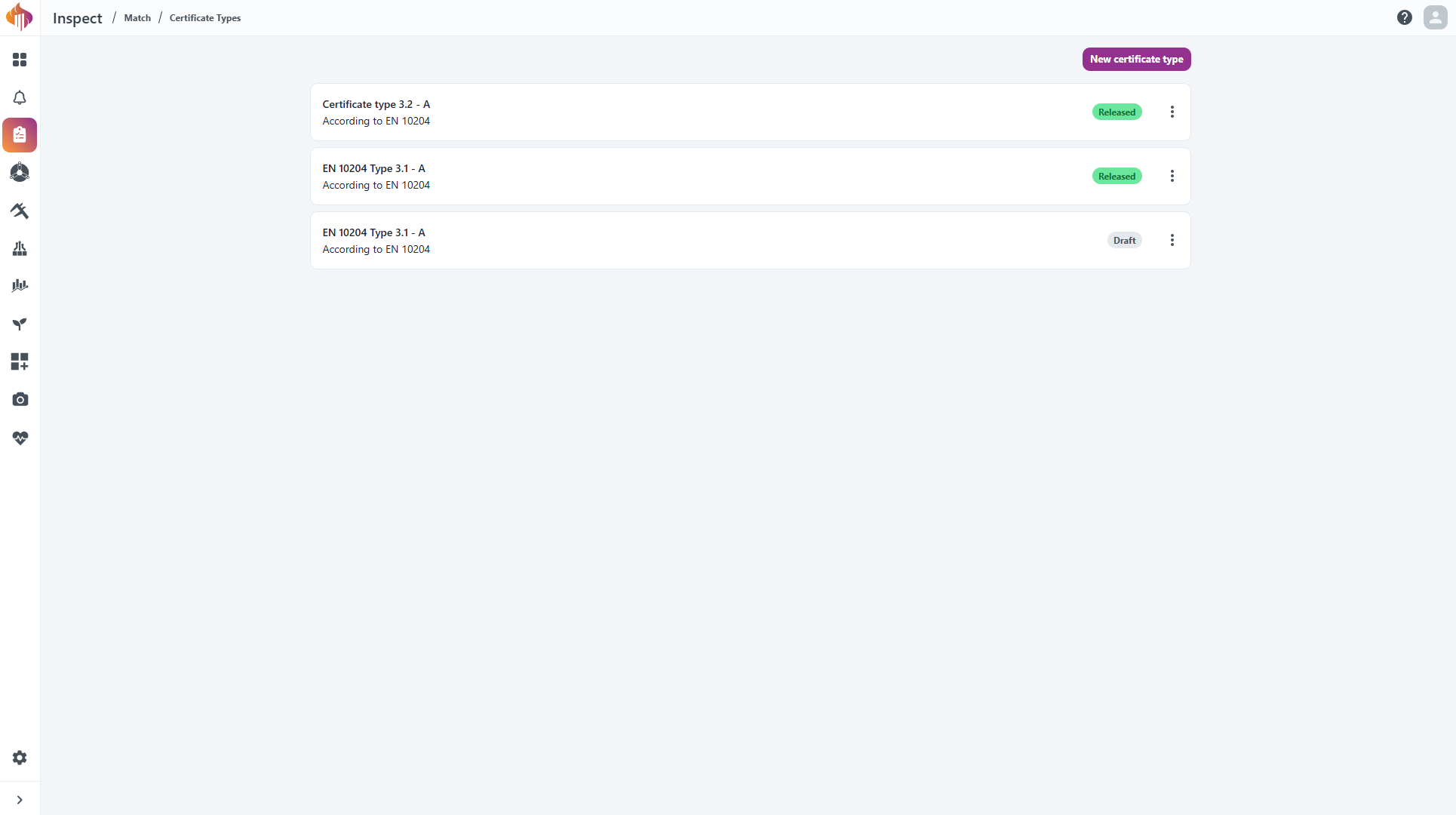
Certificate types are based on the European standard EN 10204, which defines the different types of inspection documents and material certificates for metallic products (e.g. 2.1, 2.2, 3.1, 3.2) — specifying what documentation a manufacturer or supplier must provide to confirm that a material meets the agreed requirements in the order or material standard (e.g. ASTM, EN, or ISO).
Creating and editing a certificate type
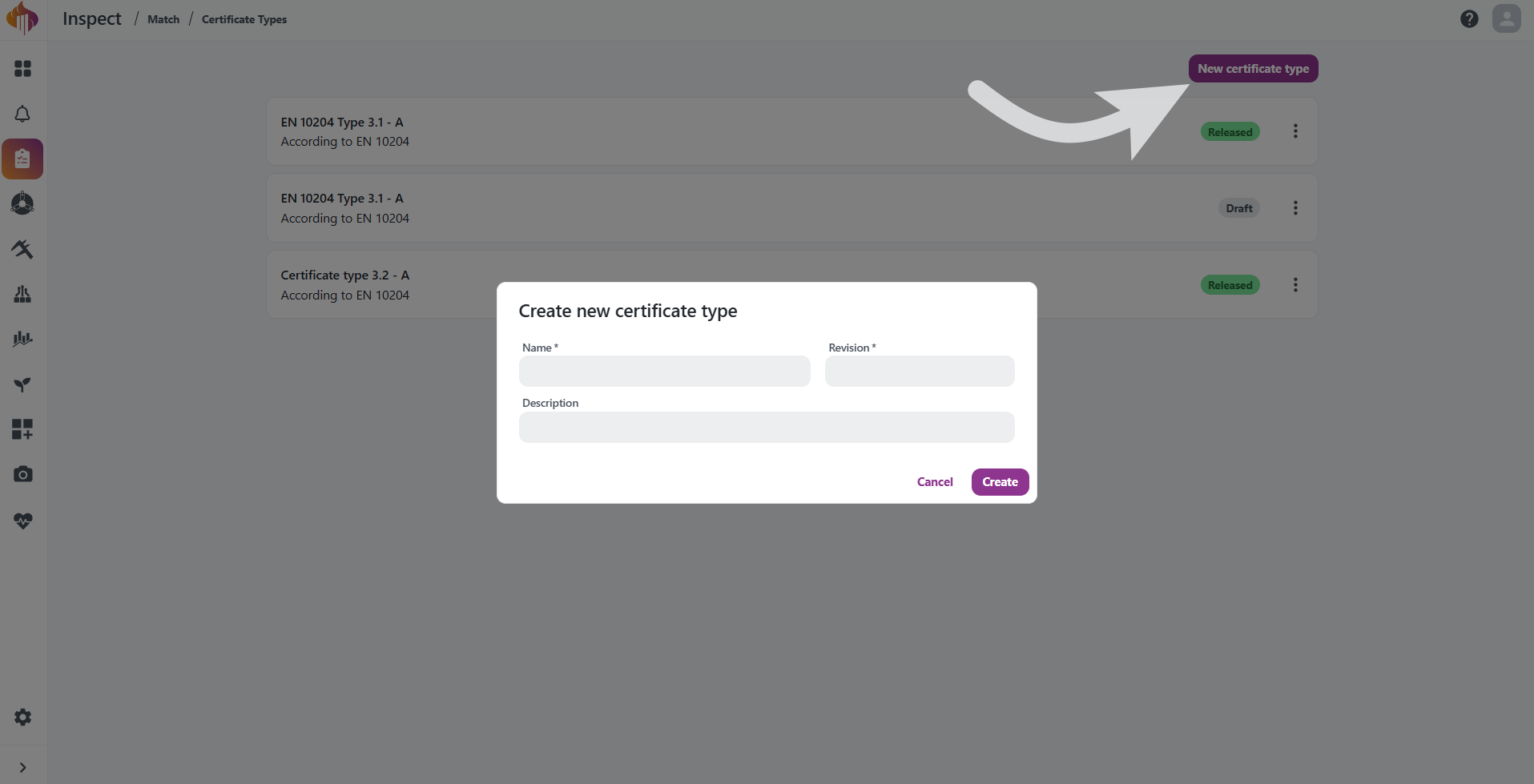
Admins can select New certificate type to create one from scratch.
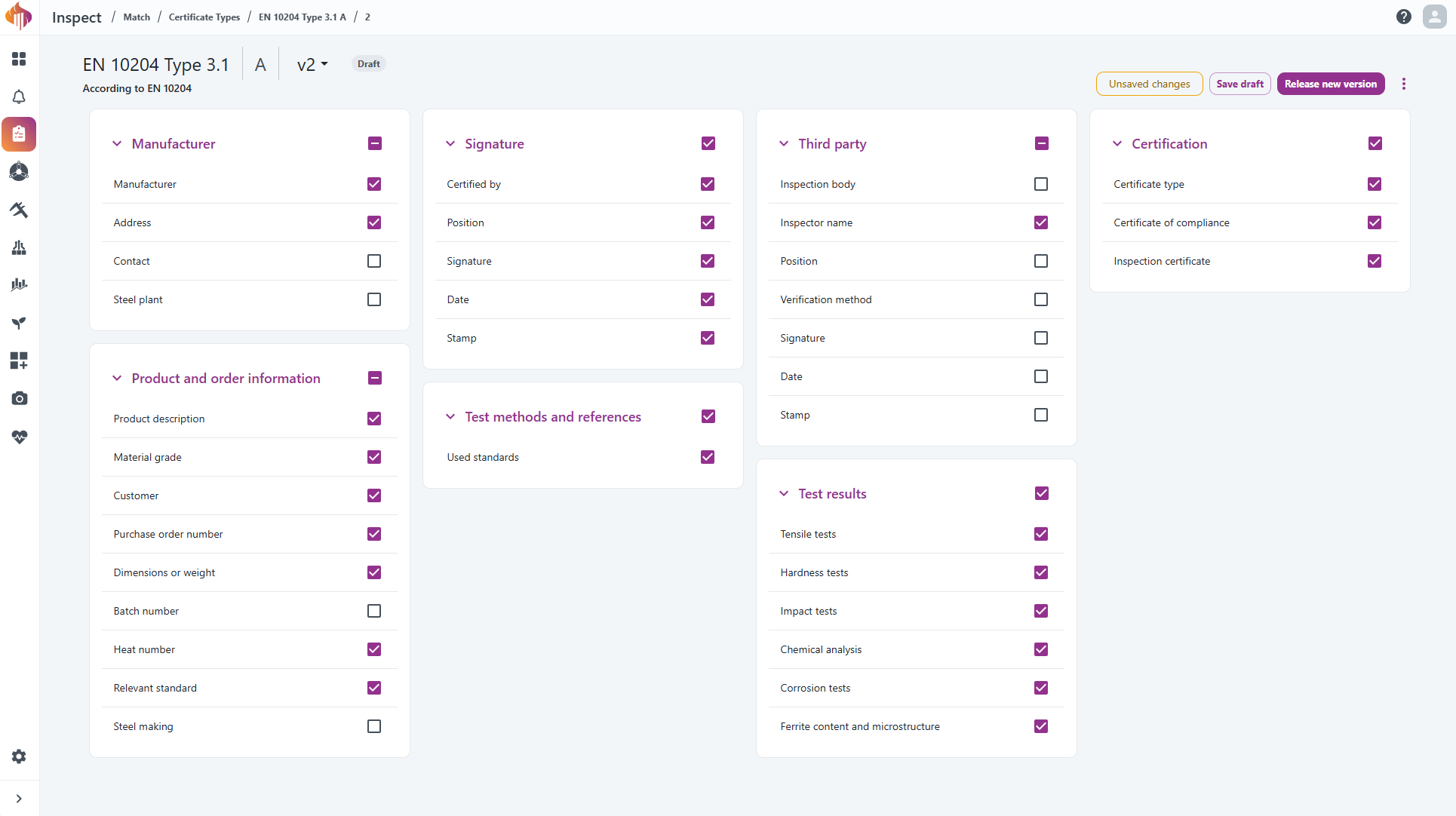
The certificate type's detail page is organized into sections (Manufacturer, Signature, Third party, Certification, Product and order information, etc.), each listing the fields that can be required. Editing a certificate type just means checking or unchecking the fields you want — a checked field is one Match will look for and validate on the certificate document when this certificate type is used in a Material Check.
Versioning
Certificate types are versioned the same way as Specifications:
- A Released certificate type is read-only. Select Edit to create a new Draft version to work on — this doesn't affect the released version, which stays in use for existing checks.

- Once your changes are ready, select Release new version to publish it. Only Released versions can be selected when running a new Material Check — a Draft version must be released first.

Copying and deleting
From the list or the detail page, open the "..." menu to Copy a certificate type (a quick way to use an existing one as a starting point) or Delete it. Admins can delete a certificate type in either Draft or Released status.