Simple Tracing with Multiple Material Lines
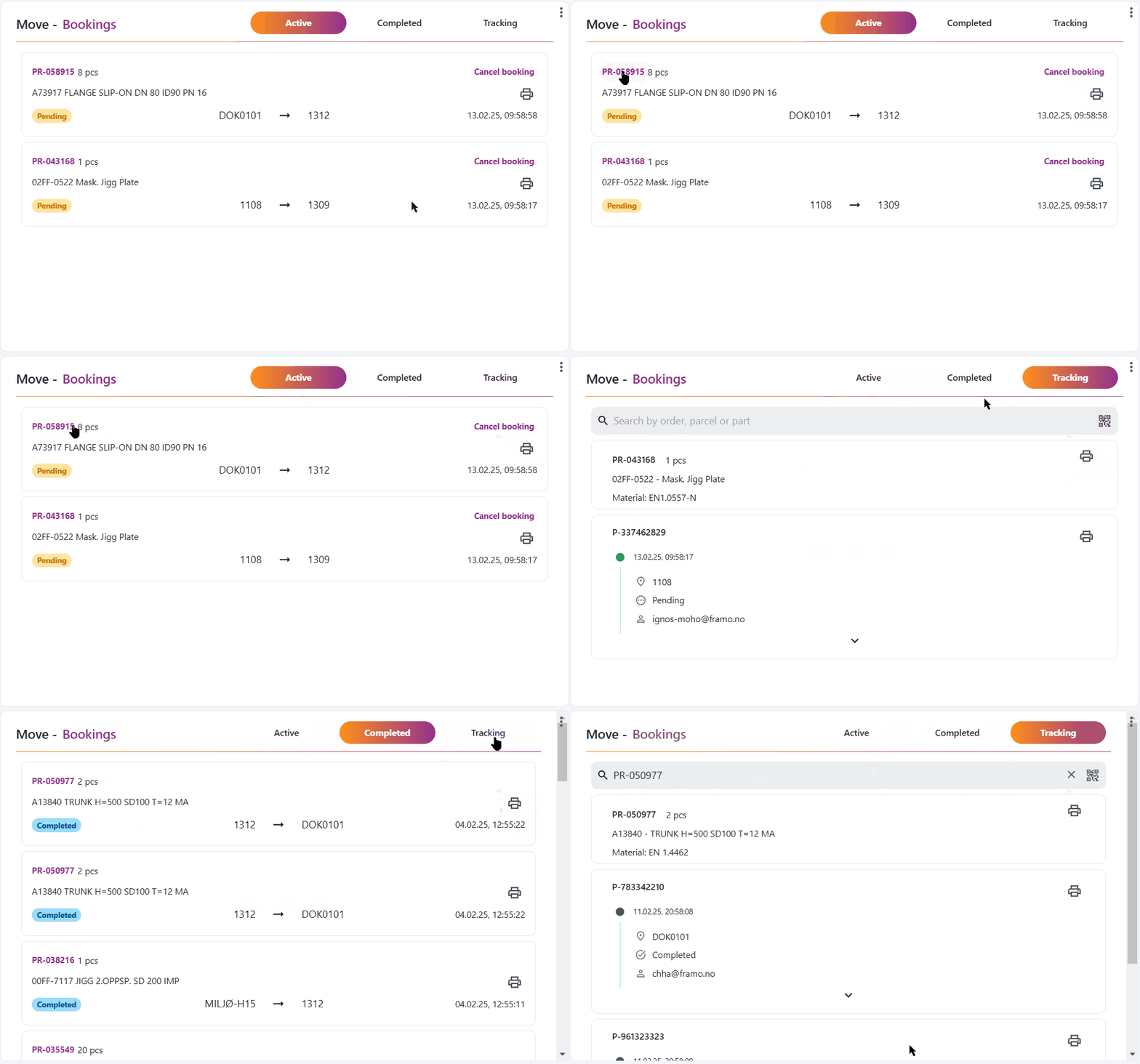
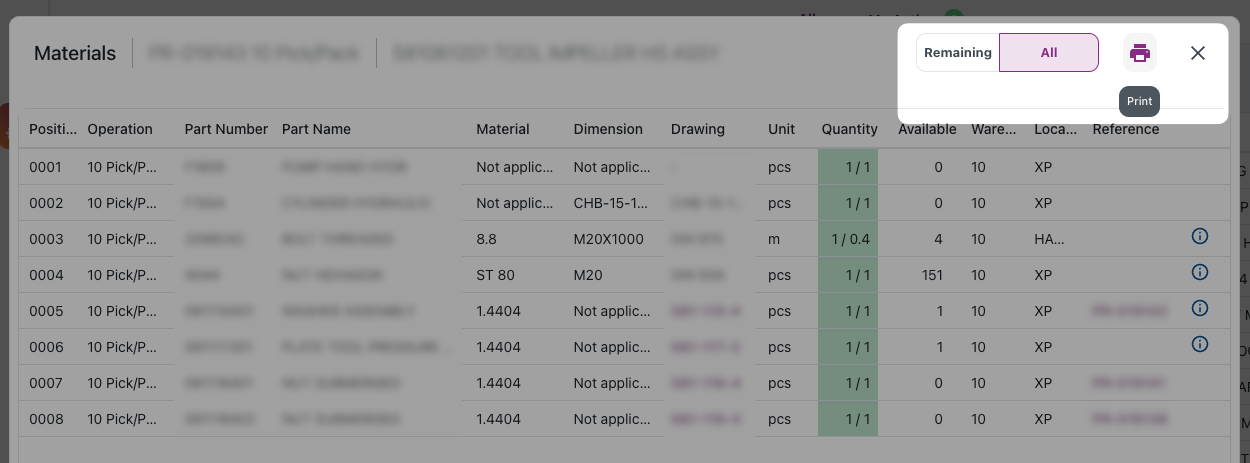
It's now possible to use simple trace for orders containing only raw material with more than one material line.

It's now possible to use simple trace for orders containing only raw material with more than one material line.

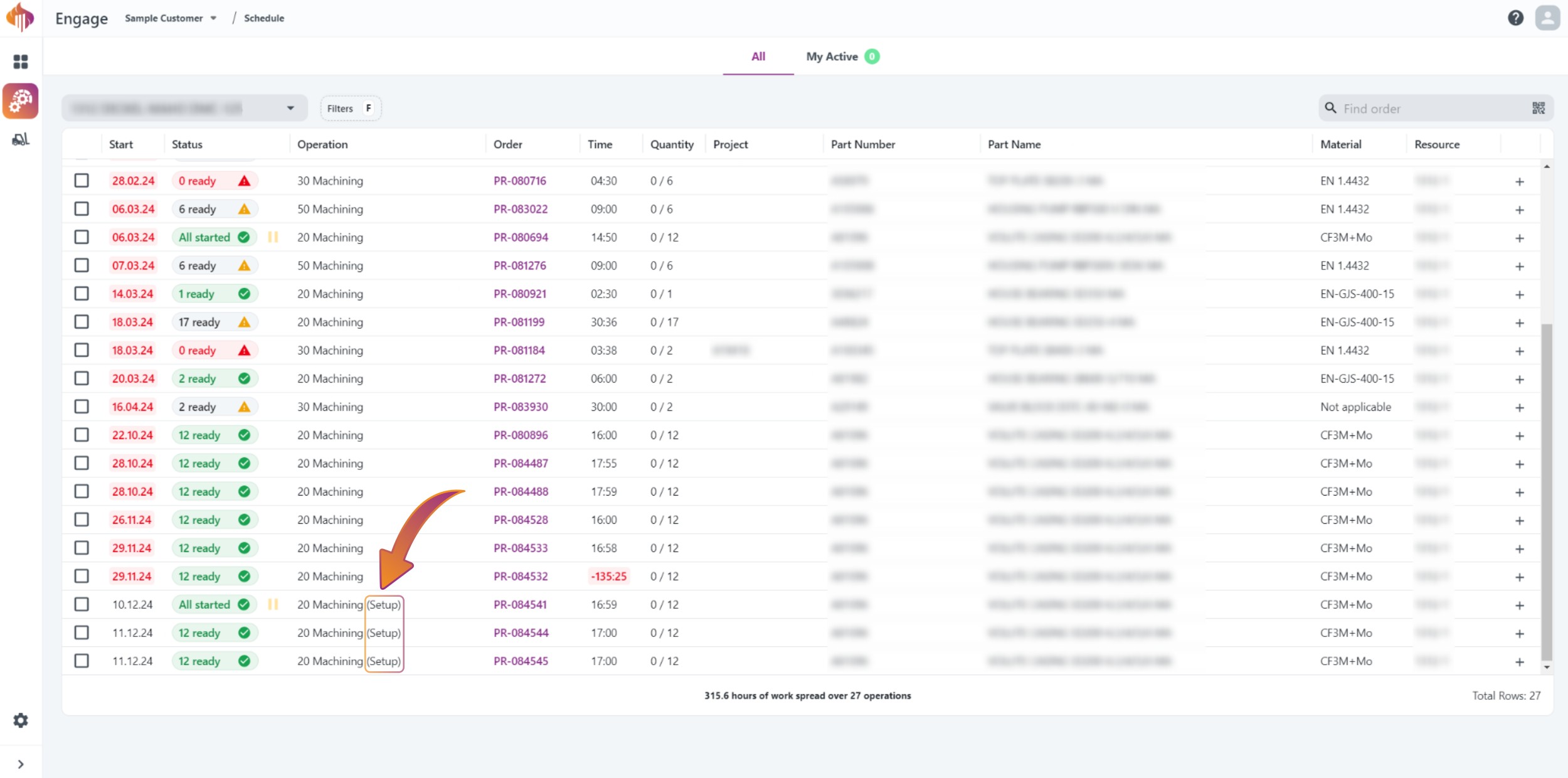
Both the route table and the expanded view in the production schedule now includes zone for the delivery location of the order.

We are now including closed nonconformances in Engage. The status of the nonconformance is visible in lower left corner.

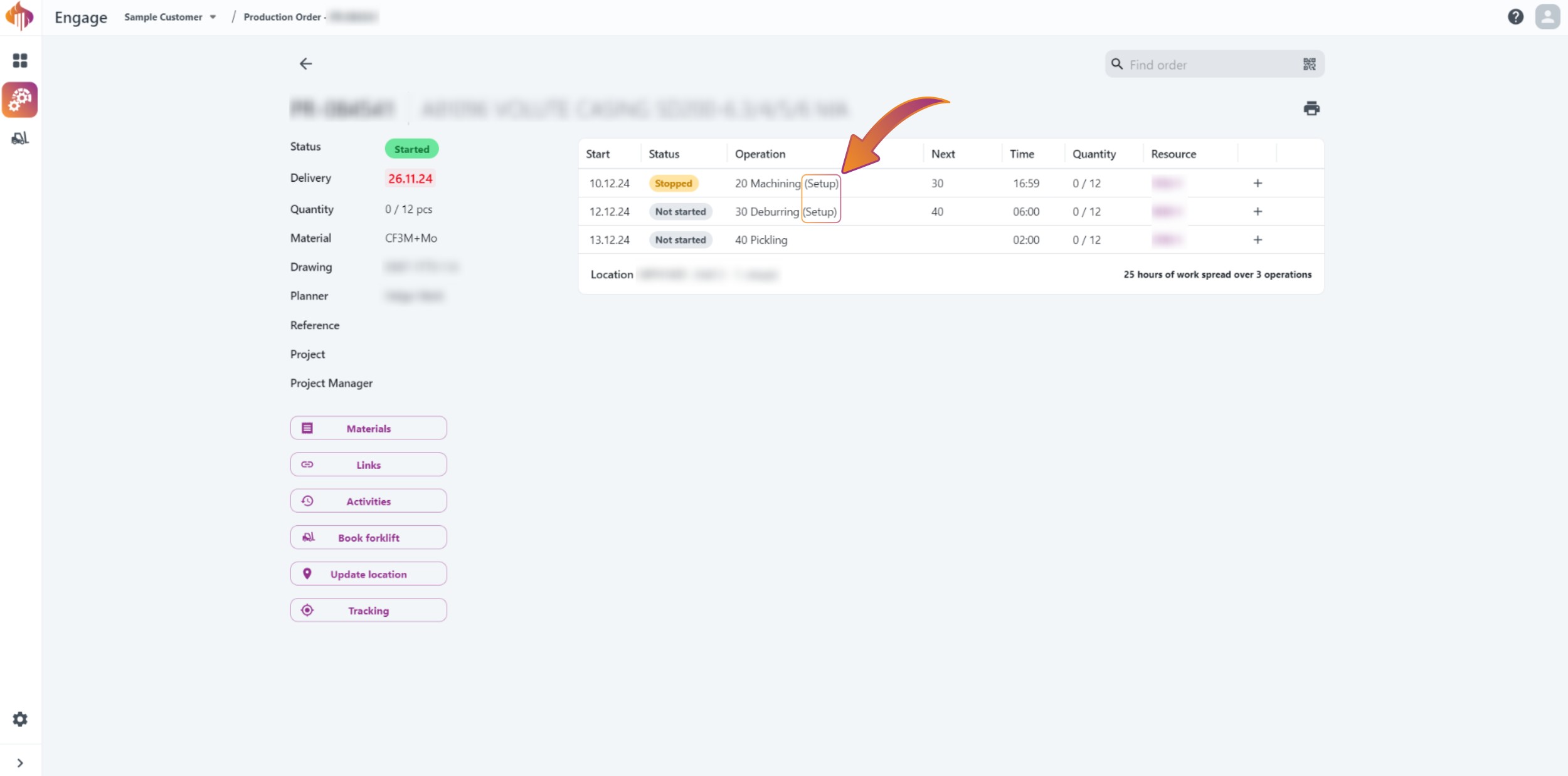
It is now possible to start an operation directly from the production order details page by selecting a row in the route table.

If you hover over the planned start date of an operation you will see a tooltip with the actual start and end dates (if any).

If there are no operations left in the "my active" page after reporting progress, you will automatically be redirected back to the production schedule.
The latest update to the app's "My Active" page now includes stopped work in addition to ongoing work. This enhancement allows users to conveniently view and resume their work in progress, providing a comprehensive overview of their tasks and improving productivity.


With this feature, users can import calibration data from an external source to avoid manual input. Click the drop zone or drop a supported file onto it to start the process. Contact us to discuss supported file formats.
This feature allows import of suitably formatted calibration data from an external source to IGNOS.
To avoid errors and failed imports, the following rules apply:
When the import has finished, the results are displayed.
First of all, an overview and a list of each tool with at least one calibration imported, and the most recent calibration imported for each tool.

Immediately after the imported calibrations, a list of import errors is shown. This list contains calibrations that should have been imported but have not due to:
Finally, a list of informational messages is available. This list is hidden by default; click on the section to display the list. This list contains calibrations that have not been imported since they:
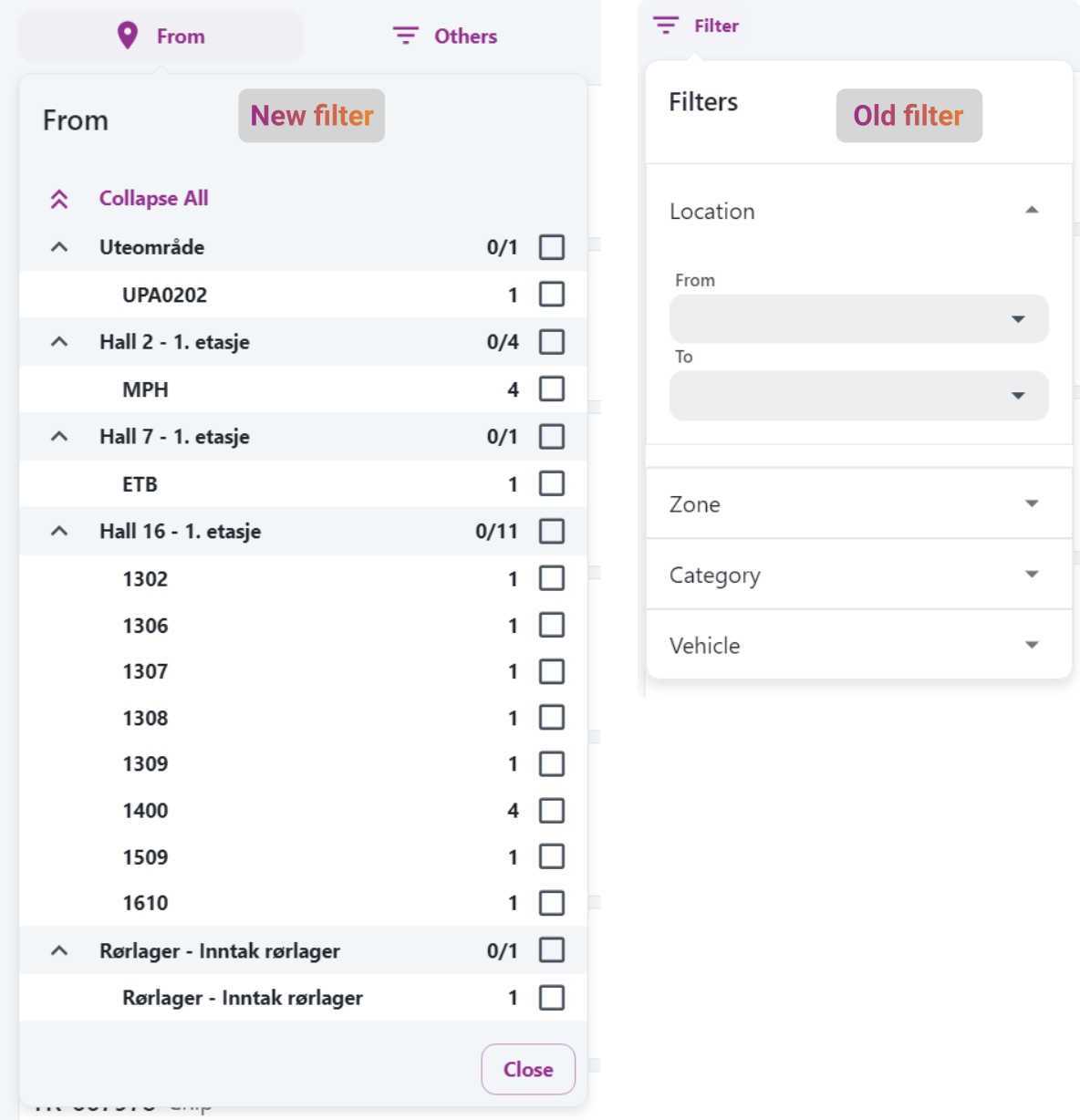
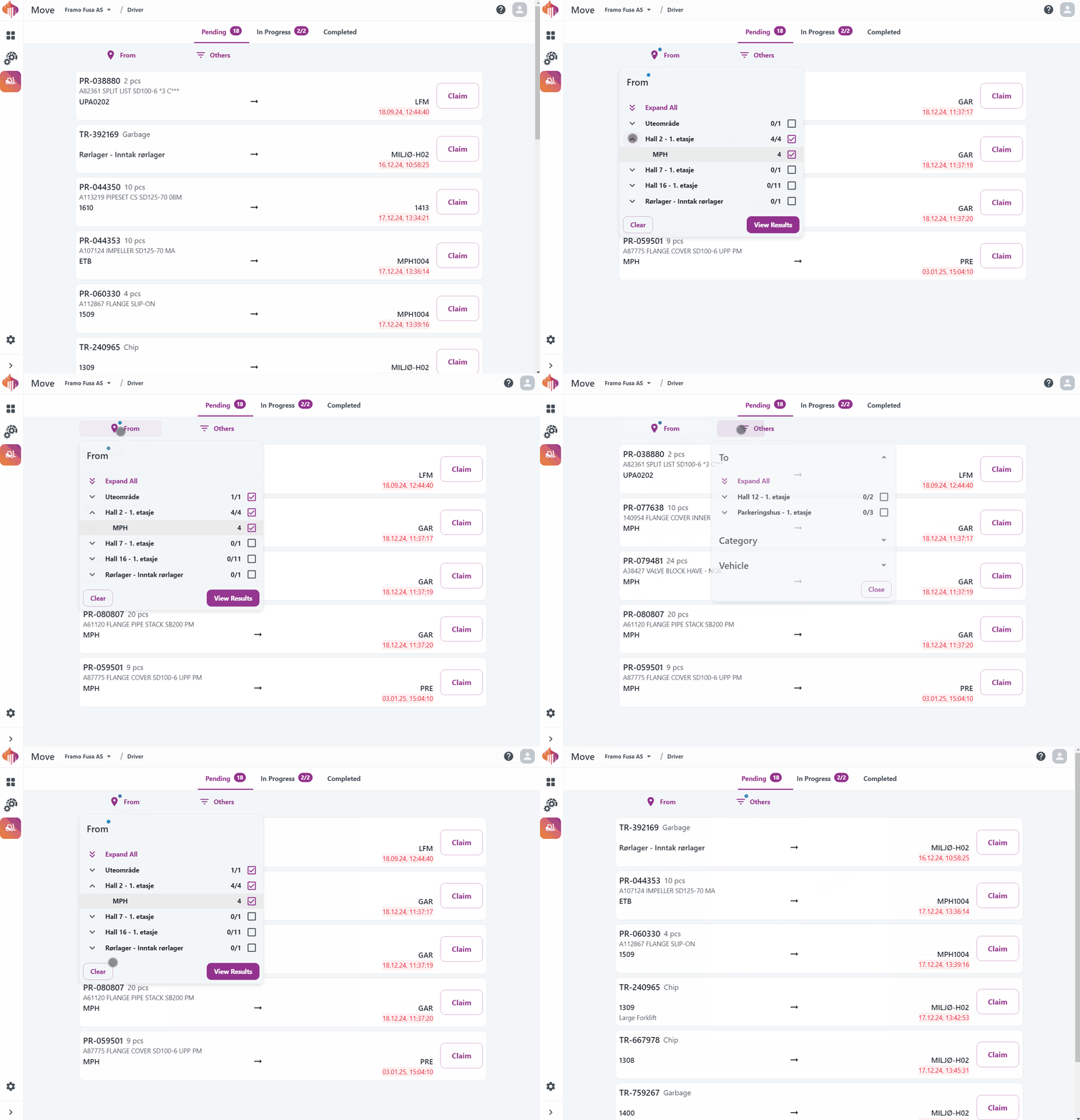
Introducing a new filter feature that allows users to easily customize and refine their production schedule view.

With this new feature, users can filter the production schedule based on various criteria such as available work, status, or project, providing a more tailored and efficient schedule experience.

Type F to select filters from the filter menu or click the Filter button above the schedule. You'll see a menu of filters that you can apply to the operation schedule. Once you've selected a filter, you can see a list of the available options along with the number of matching operations. You can move through the menu or use free text search to find the exact filter you need. If you need to filter the list of options using multiple values, this can be done using comma, newline or space to separate the values.
Use the keyboard to build the desired filters for a more effiecent workflow. F to open filter menu, then type the first letter(s) of the filter name or navigate up and down using the arrow keys. Press F again to add additional filters. To refine existing filters, use the mouse.
| Type | Description |
|---|---|
| Available work | Only show operations with available work (e.g. previous operation completed) |
| Status | ERP operation status |
| Order | Production Order ID |
| Project | Project ID |
| BOM position | BOM position / line number |
| Part number | |
| Part name | |
| Operation | Operation name (Machining, Assembly, etc.) |
Good quantity is now automatically updated based on the selected status.

Next status is now automatically updated based on the specified quantities.

The user expirience of the picking list has been improved to prevent errors.
The text inside the input field is now automatically selected when the user clicks on it to make it easier to replace the value. We also fixed an issue where the consumption value was not captured if the input cell was still active when the user clicked on the "Update" or "Consume" button.

Based on feedback from users, we added the Project column to the "My active" page.
When running unattended machining jobs, the operator may want to actively be notified on their phone if the machine stops for any reason. Notifications are a better alternative than requiring an operator to actively check in with the machine to see if it is still running.
Before you can start using the feature, an IT admin needs to install the Teams bot: Teams bot installation guide
A Teams app is installed to the customer Teams. There it will synchronize the Teams users to our database and allow a bot to send messages to individual operators.