Gå til hovedinnhold

17 innlegg merket med "move"

Vis alle tagger

Bedre ordresøk i Engage og Move

· 2 min lesetid

Ordresøket i Engage og Move er forbedret. Skriver du et ordrenummer, havner den ordren nå alltid øverst i listen. Resultatene sorteres slik at de mest relevante ordrene kommer først, og hvert resultat viser ordrestatus og leveringsdato.
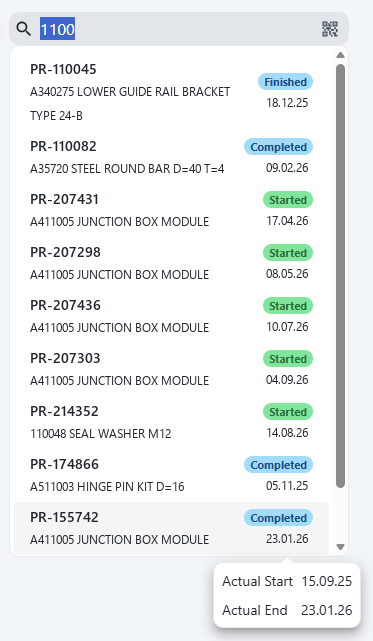
Resultater fra ordresøk i Engage

Grupper bookinger i Driver

· Ett min lesetid

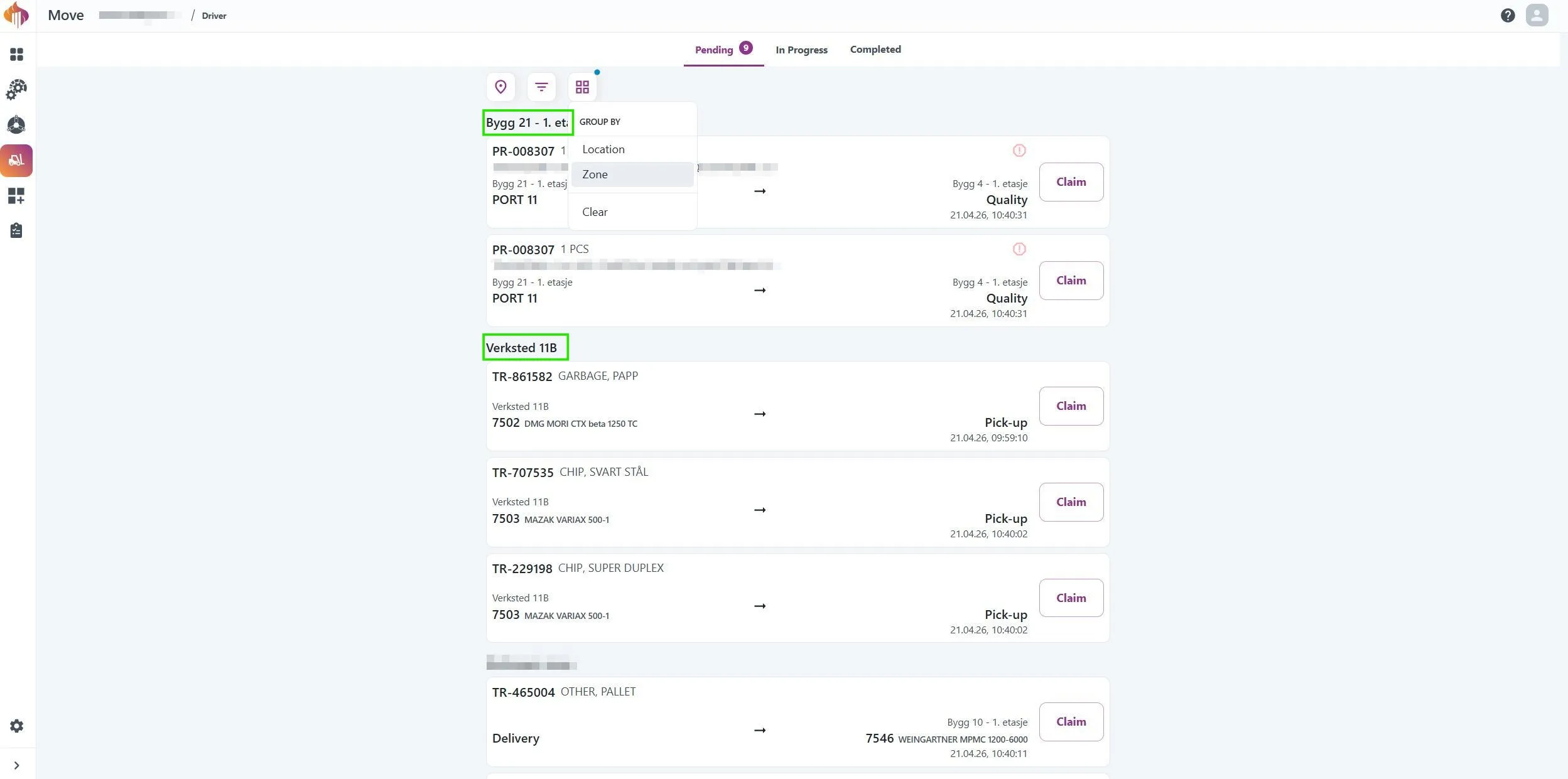
En av funksjonene trucksjåførene våre har ønsket seg mest, er her! I Driver kan du nå gruppere bookinger etter Location eller Zone.

Gruppering i Driver

Ressursnavn i lokasjonsfelt

· Ett min lesetid

Lokasjoner som er knyttet til en ressurs, viser nå ressursnavnet ved siden av ressursnummeret. Da er det mye enklere å finne riktig lokasjon, uten at du må kunne ressursnumrene utenat.

Ressursnavn i lokasjonsfelt

Infoskjermer for Move-bookinger

· Ett min lesetid

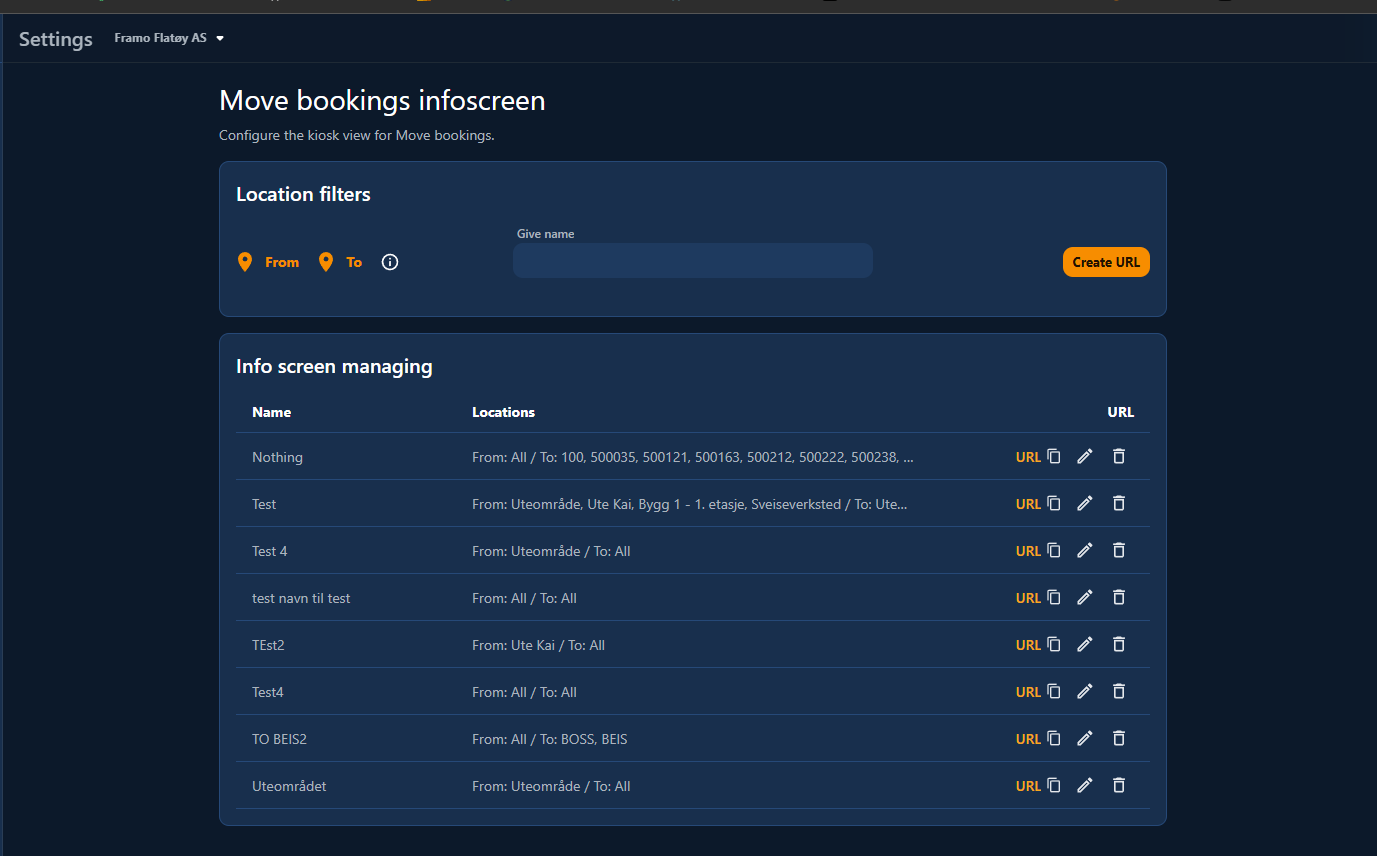
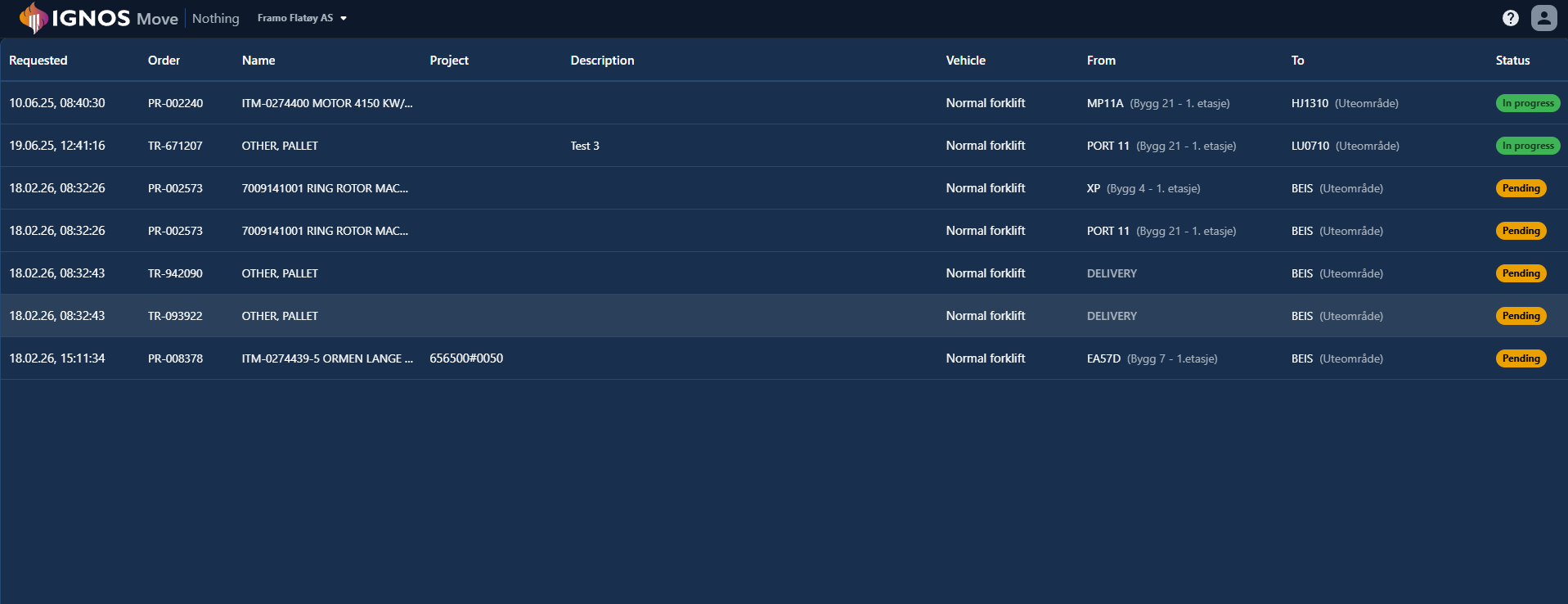
Vi har lagt til infoskjermer for Move-bookinger, laget for bruk som kiosk. Du setter dem opp i Settings, og de har en egen rute for infoskjermen.

Høydepunkter​

  • Nytt valg for administratorer: Settings > Kiosk boards > Move for å administrere infoskjermer.
  • Oppsettet for infoskjermene lagres på serveren og deles mellom brukerne.
  • Filtrene kan nå søke på tvers av alle lokasjoner, og valgte soner og lokasjoner blir stående øverst.

Kiosk board for administratorer​

Oppsett av infoskjerm i Kiosk boards

Infoskjerm i Move​

Infoskjerm i Move

Bedre redigering av parcel-beskrivelser

· Ett min lesetid

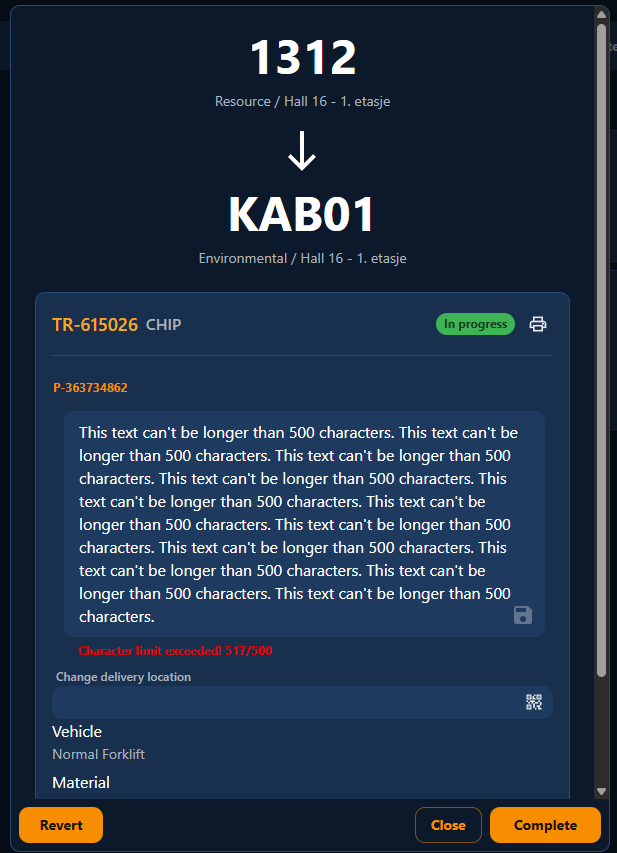
Vi har forbedret redigeringen av parcel-beskrivelser i hele Move, slik at de er raskere å lese og enklere å oppdatere.

Dette er nytt​

  • En større dialog for beskrivelsen som vokser med teksten og viser hele innholdet uten scrollefelt.
  • En tegnteller med grense på 500 tegn. Du kan ikke lagre hvis grensen er overskredet.
  • Tastaturstøtte:
    • Save: Enter
    • Cancel: Esc
    • Shift + Enter: Ny linje
  • Samme redigeringsfelt i Tracking (desktop og mobil), Booking, Update location, Driver details og Admin > Parcel locations.
  • Et blyantikon i Tracking på mobil for å redigere beskrivelser, og et lagreikon i Booking, Update location og Driver details, likt det i Tracking.

Redigering av parcel-beskrivelse med tegngrense

Med denne oppdateringen fungerer beskrivelsesfeltet likt overalt der du kan redigere parcel-detaljer.

Export booking and parcel list in Move

· Ett min lesetid

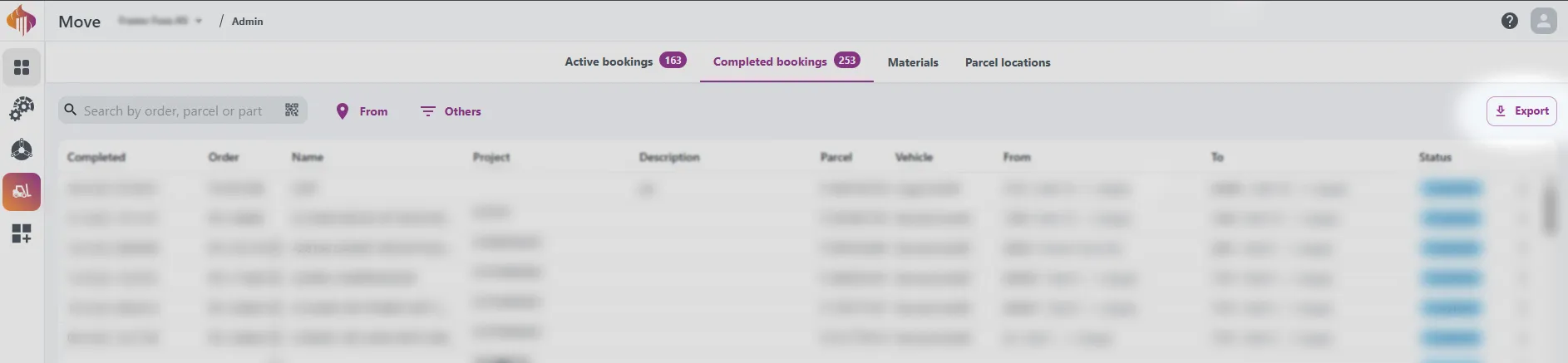
We're happy to introduce a new Export button in Move Admin! You can now easily export data from the following tabs:

  • Active bookings
  • Complete bookings
  • Parcel locations

Available export options include:

  • Booking list (with or without tracking)
  • Parcel list

All exports are provided as JSON files for easy integration and analysis.

Here’s how it looks in the UI:

move_admin_export_btn

move_admin_export_button

Material Booking

· 2 min lesetid

We are happy to introduce a new type of booking for our Move and Engage users: Material Booking! Now you can make a Move booking for material lines in Engage from the Materials and Consume Materials dialogs.

consume_booking_button Material lines with available quantity are now selectable and can be booked by using the booking button in the top corner.
Demo of how you create material bookings

material_booking_demo

  1. From the Materials or Consume Materials dialog in Engage, select the material lines you want to create a booking for by marking the select button to the left of the line.
  2. Click the Move icon in the top right corner.
  3. Adjust preferred locations, quantity, and description in the form.
  4. Click Book and voilà: Your booking will appear like other Move bookings for transporters to pick up.

Output in Move

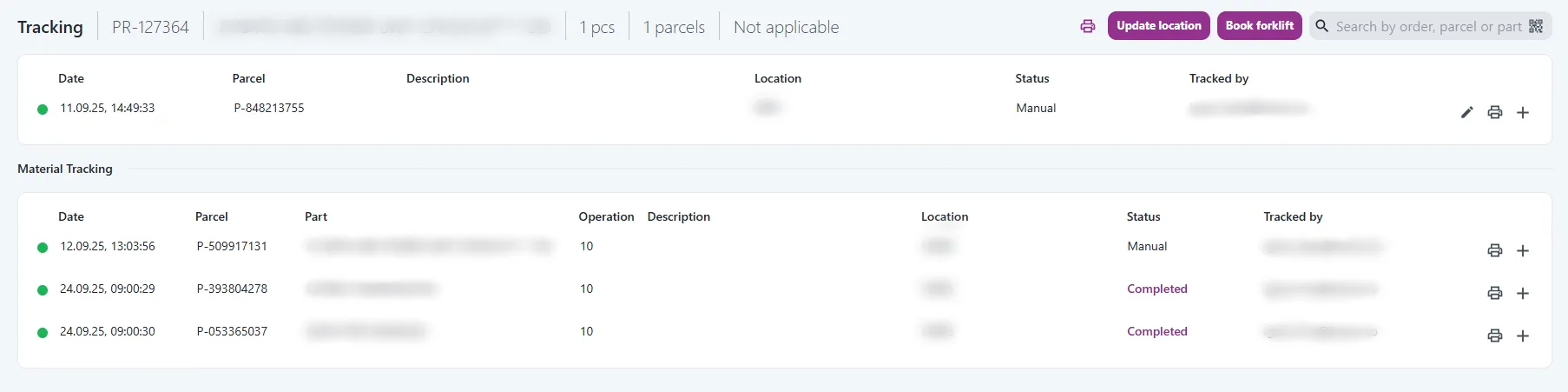
Material bookings are marked with an M throughout Move. The part information and quantity follows the material line and not the production order. A new table containing material bookings is added for related production orders in tracking.

driver_material_booking_cards Output in Driver.

material_booking_tracking Output in Tracking

Active booking marker

Material lines with bookings in status complete, pending, or in progress get a booking status marker. Hovering over this will give more information about the booking.

material_booking_status

Example shows material lines with active bookings in status Pending.

Get notified on new bookings from your locations!

· Ett min lesetid

Now you can get a notification in teams whenever there is a new booking from zones and locations you choose.

How to get started:
First you must make sure the Teamsbot are installed for your organization and configured as described here

To set up your notifications, click your user icon in the top right, then notifications:

picture

picture

Use the filter button to select from which zones or locations you want to be notified when there are new bookings.
If none are selected, you will get notifications about all bookings.
Use the Activate/Deactivate button to turn on/off the notifications.

picture

Teams notification:

When a booking from you selected location is done, you will get a notification in teams like this (look for the Ignos chat in teams):

picture

Click the link to open the booking in Move Driver.

Pick up and Deliver feature

· 2 min lesetid

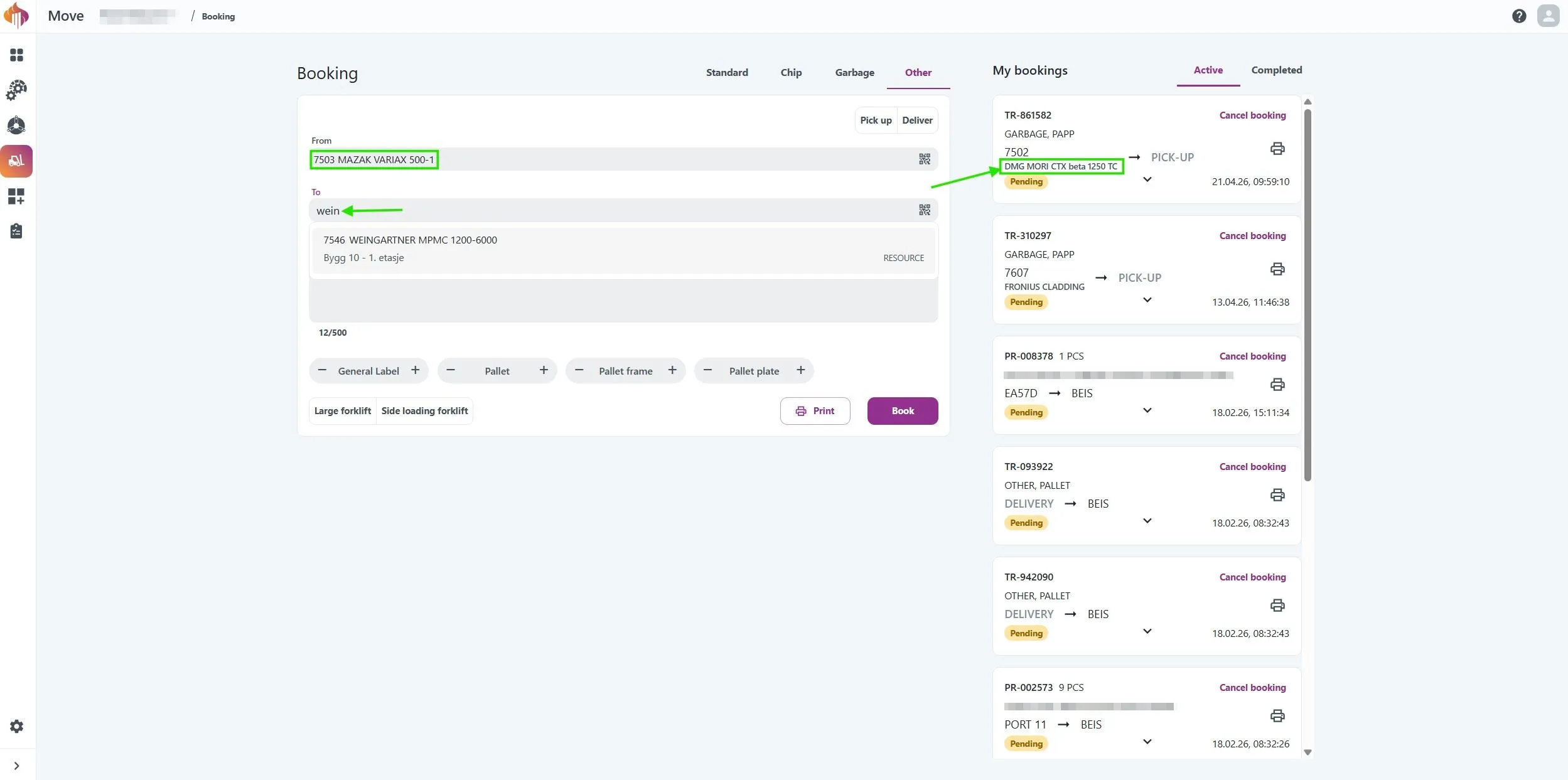
We're thrilled to roll out a new update to our booking app, designed to make your workflow smoother and more efficient! We've added an exclusive toggle button to the "Other" booking option on the Book page, giving you more flexibility when scheduling pickups or deliveries.

  • Pickup or Deliver Toggle: When creating a booking under the "Other" category, you can now select either Pickup or Deliver using a new toggle button. If neither is selected, the booking form works as before, allowing you to manually enter both "From" and "To" locations along with a description and parcel categories.

  • Deliver Option: Choose "Deliver" to disable the "From" location field. The booking will automatically set the "From" location to "Delivery." This is perfect for scenarios where you need something like an empty pallet delivered to your location, but you don’t know or need to specify the exact origin (e.g., a factory’s known storage point).

  • Pickup Option: Select "Pickup" to disable the "To" location field. The booking will set the "To" location to "Pickup." This is ideal for workers who need to move items (e.g., excess materials) to a standard storage location without specifying the destination.

Here's a quick demo: move_pickup_deliver.gif

This update simplifies the booking process for common scenarios where drivers or users don’t need to input both locations. Factories often have predefined spots for deliveries or storage, and these toggles save time by auto-filling those details while keeping the process intuitive. We hope this update makes your day-to-day operations even smoother.

Parcel categories

· Ett min lesetid

We’re excited to introduce a new booking feature in Move! Parcel catagories are now available for Chip, Garbage, and Other. This feature streamlines booking descriptions and enables faster processing.

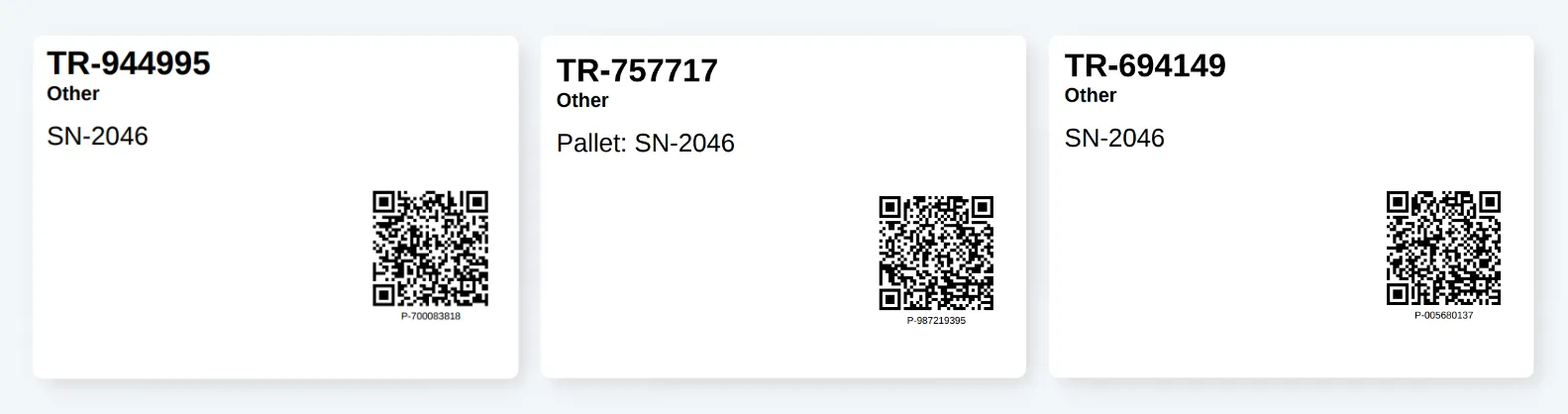
Plus, you can now print labels directly without creating a booking.

How to use: Adding a category, such as 'Pallet,' allows you to specify the number of labels to print or bookings to create, while also providing an additional description for the parcel. Using a general label lets you adjust the number of labels to print or bookings without including an extra marker.

move_parcel-categories_booking.gif move_parcel-categories.png

Setup: Admin users can manage categories in the Settings menu. Here, you can add or remove categories and link them to specific parcel types.

move_parcel-categories_admin.gif